Shifts
A shift — also called a booking period — is one session of trading. It opens when someone starts it on the register and closes when someone ends it. Everything sold in between belongs to that shift.
Shifts are how the day is divided and how cash is reconciled.
Tip
To close a period and produce figures for your bookkeeper, follow Accounting. This page describes the shift pages themselves.
Note
Screenshots on this page show the International panel. In the certified version some actions are absent — see What You See Depends on Your Version.
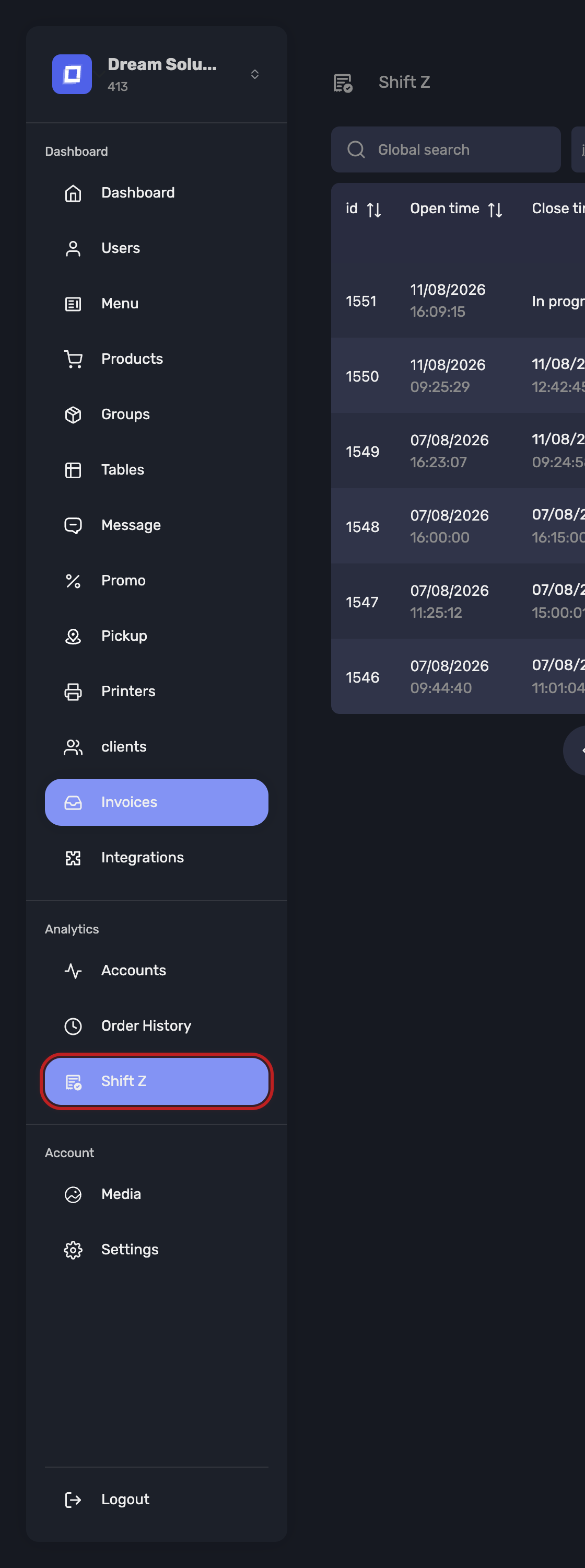
Open it from Shift Z in the sidebar.
The Shift List
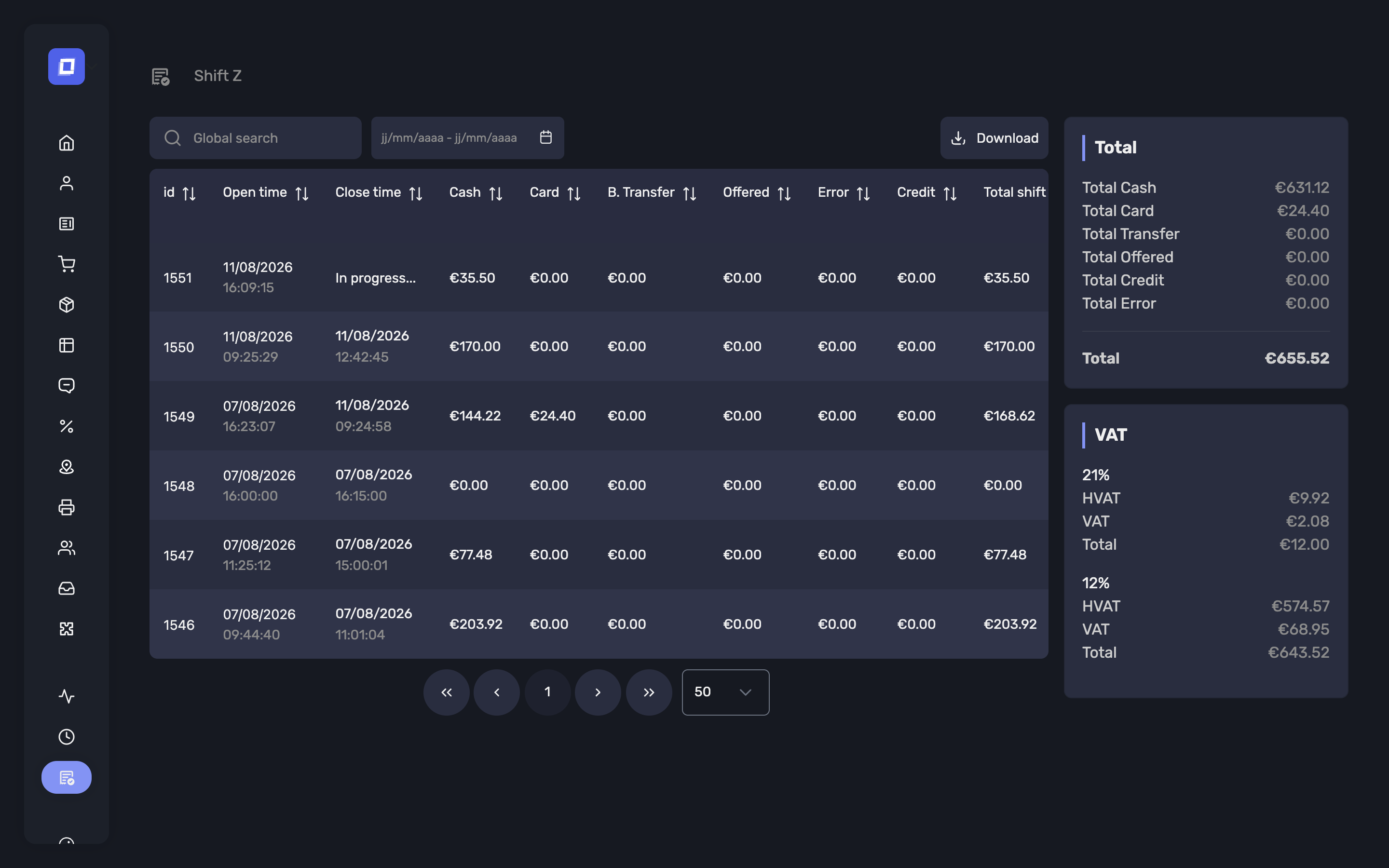
Analytics → Shift Z lists every booking period in the selected period, newest first.
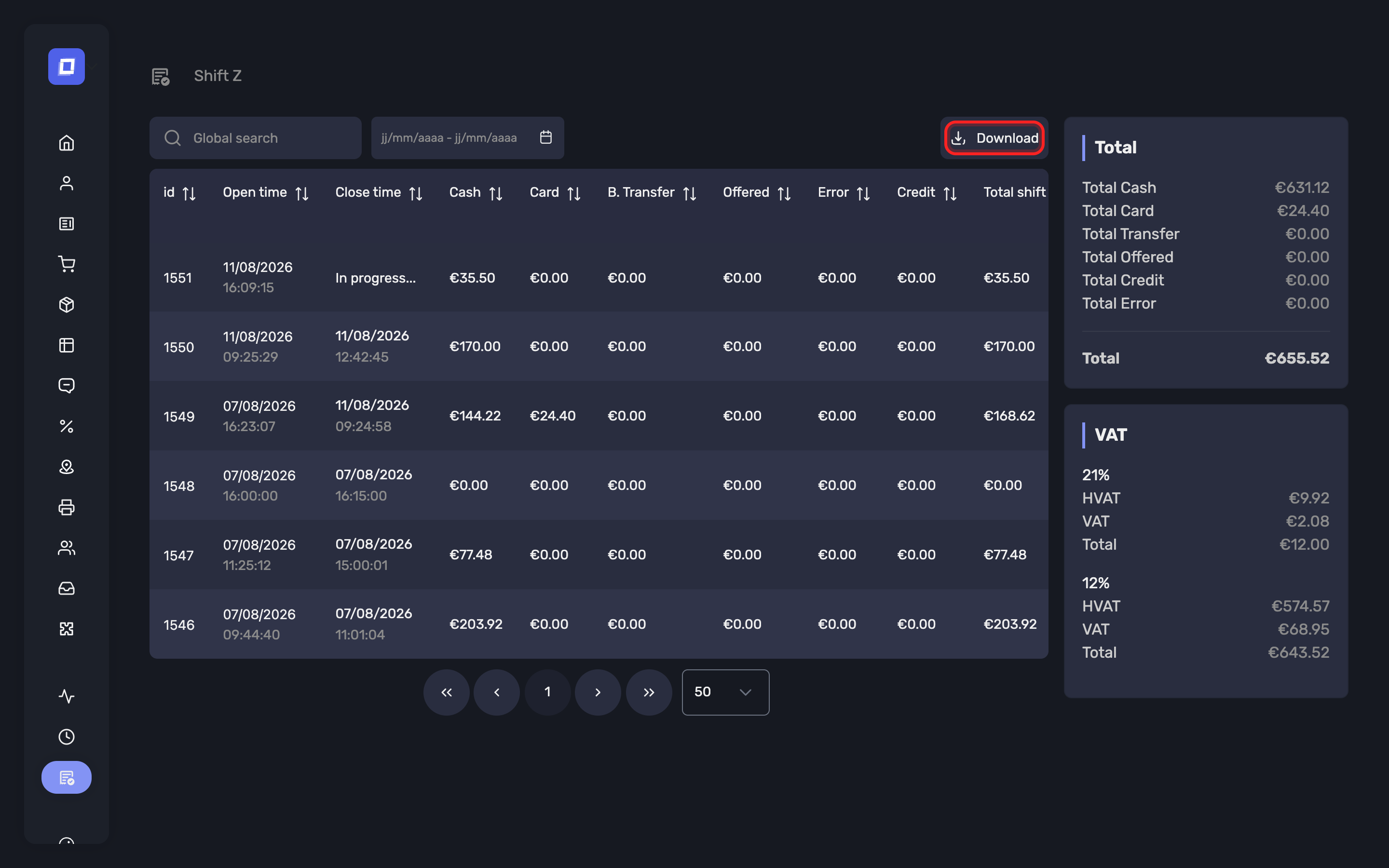
Set a Start Date and End Date at the top, and use the keyword search to narrow further.
Each row carries the figures for that shift:
| Column | What it holds |
|---|---|
| Open time | When the shift was started, and by whom |
| id | The shift number — quote this when discussing a shift |
| Cash, Card, Transfer, Credit, Error, Offered | Totals per payment type |
| Total shift | The sum of the above |
| Close time | When it ended, or In progress... if it is still running |
| Comment | The note left when closing |
| Actions | The two drill-downs described below |
Tip
A shift still showing In progress... has no closing figures yet. If yesterday's shift is still open, someone forgot to close it on the register — that is worth fixing before you reconcile, because its takings are not final.
Opening and Closing
A shift is normally opened and closed on the register, where staff count the cash. Where the panel offers it, Open a shift and Close this shift do the same from here.
Closing asks for:
- Your total amount of cash — the counted contents of the drawer
- Any comment about the end shift — a free note
- Force to close the account with mixed payment by — how to settle any account left part-paid
Warning
Closing is final: “Are you sure you want to end the shift? You can't open this shift afterwards!” A closed shift cannot be reopened, so make sure service has genuinely finished.
Note
In the certified version shifts cannot be closed from the Posbel Admin panel at all. They are closed on the register, where the fiscal report is produced.
The Accounts of a Shift
The first action on a row opens Shift detail — every account opened during that shift.
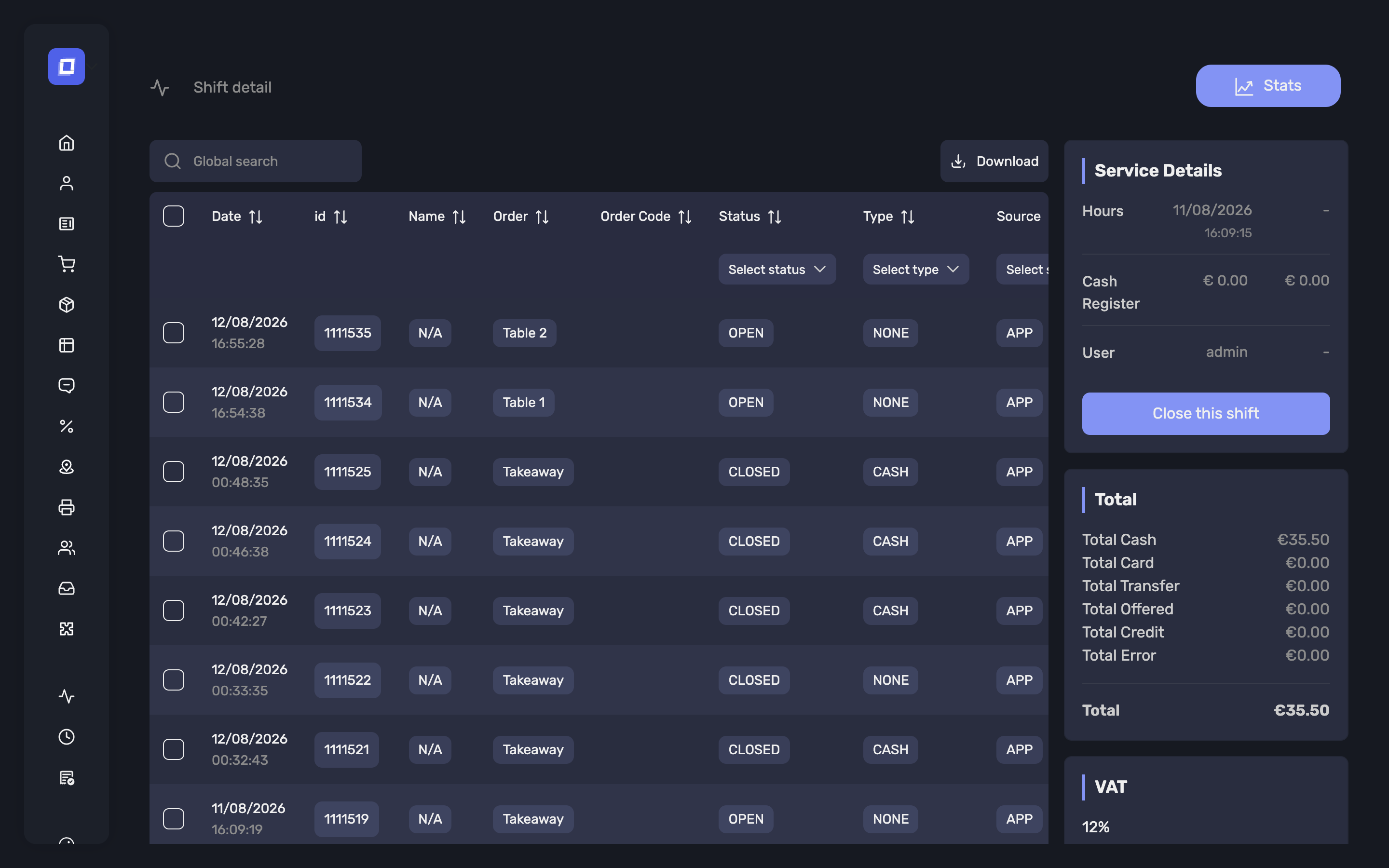
Alongside the accounts you get the service details: which cash register took them, which user, the start and end hours, and the service mode — On site, Takeaway or Delivery.
Use this to answer "what actually made up this total" — it is the bridge between a shift's summary figure and the individual tickets behind it.
Note
The list exports to CSV as shift_summary.
Shift Statistics
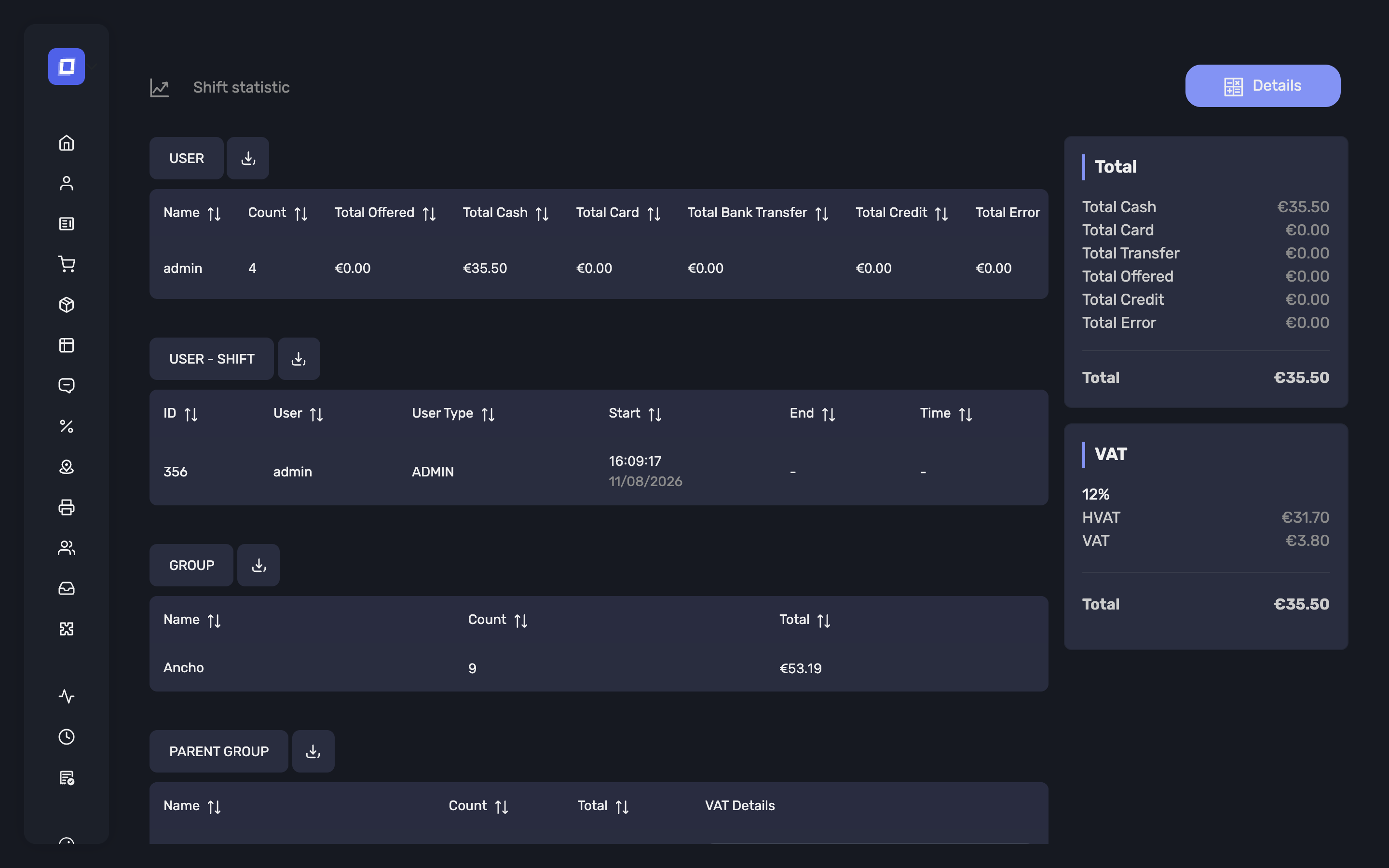
The second action opens Shift statistic — the accounting view of a shift.
The Panels on the Right
Total breaks the shift down by payment type — Total Cash, Total Card, Total Transfer, Total Offered, Total Credit, Total Error — and closes with a Total of the money actually taken: cash, card, transfer and credit. Offered and Error are listed but not added in. This is the figure to reconcile against the drawer and the card terminal. See Payment Totals.
VAT breaks the same shift down by VAT rate, and for each rate gives:
- HVAT — the amount excluding VAT
- VAT — the tax itself
- Total — the two combined
This is the block your accountant wants.
The Tables
Each table has a download button beside its title that exports it to CSV:
| Table | Reports | Exports as |
|---|---|---|
| Users | Per member of staff: transaction count and totals per payment type | user_details |
| Shifts per user | The hours each employee worked — see Employee Shift Summaries | user_shift |
| Groups | Sales per product group | group_details |
| Parent groups | The same rolled up to the top-level group, with VAT details | parent_group_details |
| Products | Sales per product, with Purchase price where you have set one | product_details |
Details at the top right opens the full breakdown.
Employee Shift Summaries
The hours your staff worked are in the Shifts per user table, inside Shift statistic. They are not a page of their own, which is why they can be hard to find.
To get there:
- Open Shift Z in the sidebar.
- Set the Start Date and End Date for the period you want.
- Open the statistics action — the second action on a shift row for one session, or the statistics button beside the date range for the whole period.
- Scroll to Shifts per user.
What the table shows depends on which of those two you opened.
One shift — a row per worker shift, for the people who clocked in during it:
| Column | What it holds |
|---|---|
| Id | The worker shift number |
| User | Who worked it |
| Type | Their user type |
| Start, End | When they clocked in and out. A shift still running shows — for End |
| Duration | How long that single shift lasted |
A date range — a row per employee, totalled over the period:
| Column | What it holds |
|---|---|
| User | The employee |
| Number of shifts | How many shifts they worked in the period |
| Type | Their user type |
| Duration | Their total hours across those shifts |
So the answer to "per employee or per shift" is both: search one shift to see individual clock-ins, and a date range to see each person's total.
Both versions download as user_shift.csv from the button beside the table
title.
Tip
For payroll, set the date range to the month and export the summary. One row per employee with their shift count and total hours is the figure you need, and it does not have to be added up from individual sessions.
Note
A row only appears for staff who actually started a worker shift. If somebody is missing, they served without clocking in — see Worker Shift.
Note
The table is the same in the Belgian SCE-certified version as in the International one.
Where the Money Went, Not Just the Net
Groups, Parent groups and Products do not net their figures into a single number. Each row splits into four sortable columns, the same split the X and Z reports use, alongside Quantity and the row total:
| Column | What it counts |
|---|---|
| Sales | Items sold |
| Refunds | Items refunded to the customer |
| Corrections | Items cancelled, reversed or re-priced after being registered |
| Other negative | Remaining negative movements |
Tip
This is what makes a low figure explainable. A group that sold well but carries one large correction reads completely differently from one that simply sold less, and netted into a single total the two look identical. Sort on Corrections when a total is not what you expected.
Note
The Users table is not split this way. It reports each person's transaction count and takings per payment type, which is what you reconcile a till against.
Statistics for a Whole Period
You do not have to open each shift and add the figures up. Choose a date range on the shift list and the statistics button appears next to it — that opens the same statistics view, aggregated over the whole period.
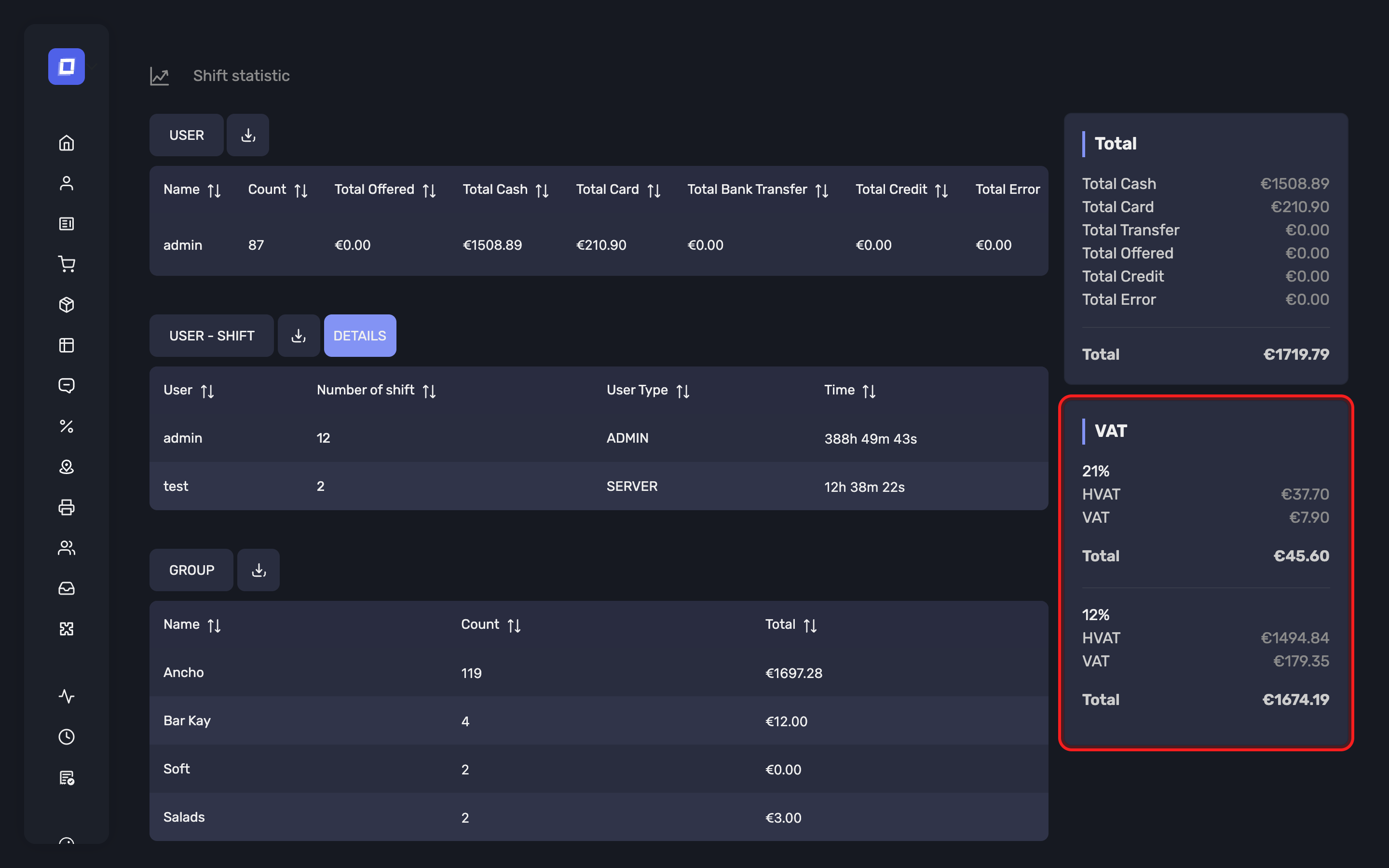
Everything is totalled across the range you searched:
- Total — cash, card, transfer, offered, credit and error for the entire period, and the overall total
- VAT — every rate that occurred, each with its HVAT, VAT and Total
- Users — each member of staff's transaction count and takings across the period
- Shifts per user — per employee, the Number of shifts worked and their total Duration — see Employee Shift Summaries
- Groups, Parent groups, Products — sales per category and per item for the period
Each table still exports to CSV, now covering the whole range rather than one shift.
Tip
This is the view to use for a month, a week or a quarter. A per-shift figure is for investigating one session; the interval view is for reporting.
Summary Panels on the List
The list page carries the same two panels, covering the whole period you searched — not the selected row. This is what makes a period total a matter of reading rather than adding:
Total — cumulative totals of paid transactions only, by payment type.
VAT — all VAT, including unpaid items, grouped by rate, with HVAT, VAT and Total.
Note
The VAT panel includes all orders, paid or not; the Total panel counts only paid and closed transactions. A gap between them is expected when the period contains open or unpaid accounts — it is not an error.
VAT Disclaimer
Warning
The VAT figures shown in this section are for visual reference only. They do not represent certified or legally binding financial records for the SCE-certified Belgian version of the application.
For official reporting or audit purposes, always refer to a signed VAT ticket generated by the POS system.
Limitations
This section lists booking periods, not days. Several shifts on one day appear as separate rows; a shift that spans midnight belongs to the day it opened.
X and Z reports can be downloaded from the shift list for the period you have searched, and from an individual shift. Both are PDF documents — what each contains is in Reports and Exports.
Warning
The reports downloaded here are operational, in both versions. Under certification the fiscal X and Z reports are the ones produced on the register — see Shop Shift. Take anything you file or hand to an inspector from there.
Note
In the certified version a searched period is selected by booking date rather than by shift, so a booking date made of several shifts is always reported whole. See How a Period Is Selected.
Note
In the certified version, the shift detail page offers no account deletion and no option to close a shift from the Posbel Admin panel.
Summary
- A shift is one trading session; everything sold in between belongs to it
- The list gives per-shift totals by payment type
- The first row action shows the accounts, the second the statistics
- The VAT panel on the statistics view is the accounting figure; the CSV exports are the detail behind it
- Employee hours are in Shifts per user on the statistics view, per shift or totalled per person — see Employee Shift Summaries
- For closing a period, see Accounting