Product Groups
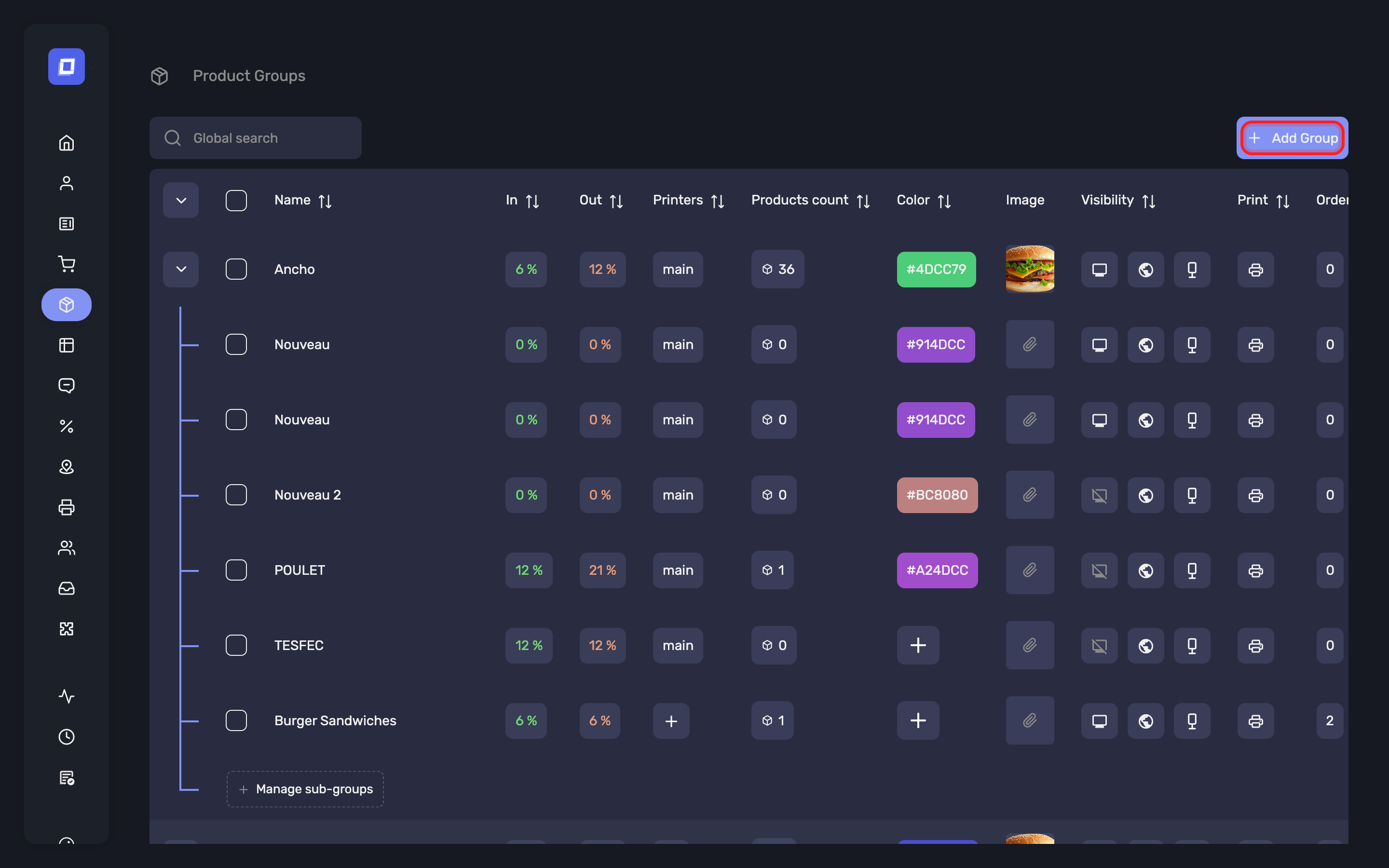
The Product Groups section (also referred to as departments) allows you to organize and categorize products within the system. Product groups are essential for grouping related items and enabling printer routing, product filtering, and order structuring both in the app and in composed menus.
Product groups can be created, edited, or deleted. A deleted group is hidden rather than erased, so past orders that reference it keep reporting correctly.
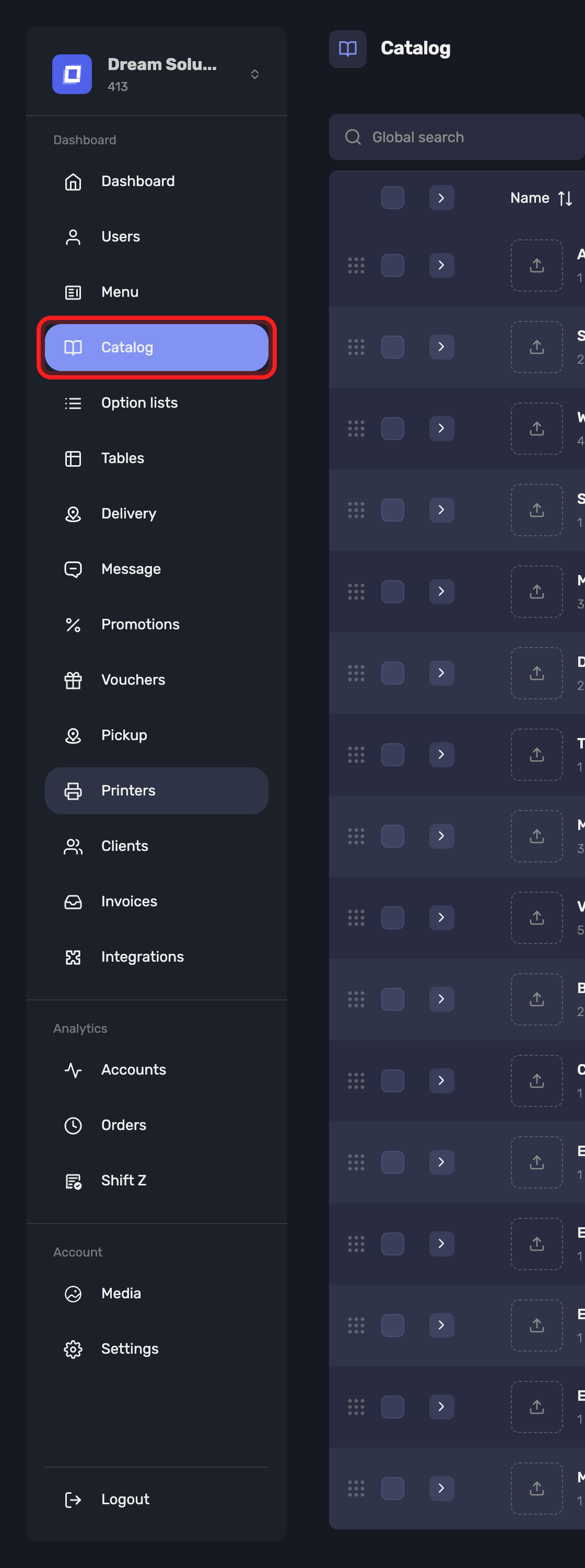
Open it from Catalog in the sidebar, which opens on the Groups view. Products live on the same page under the Products view — see Products.
Note
A group has to be empty before it can go: “Cannot delete a non-empty group.” Move or delete its products first. Deleting a parent group takes its subgroups with it, so empty those too.
Creating a Product Group
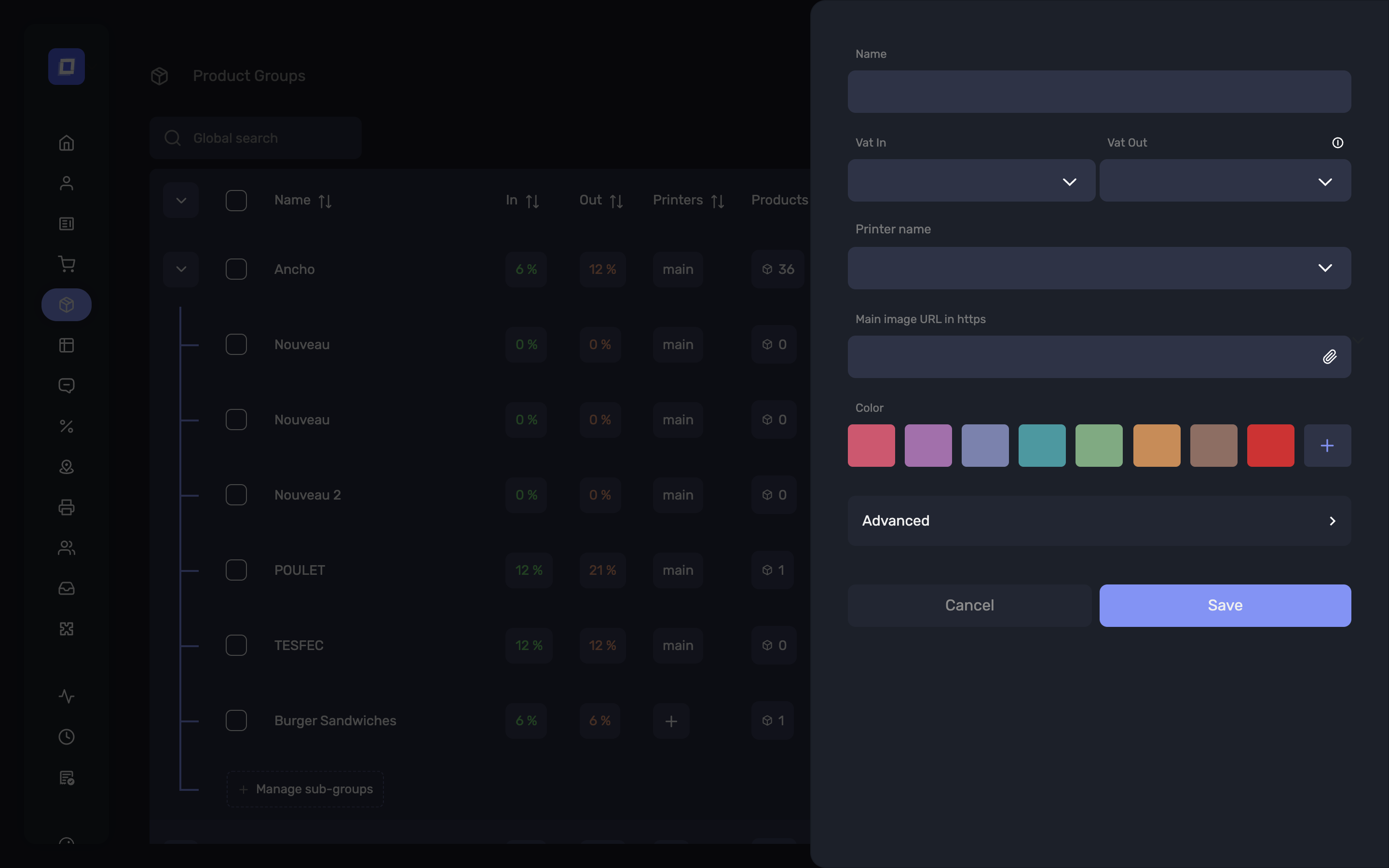
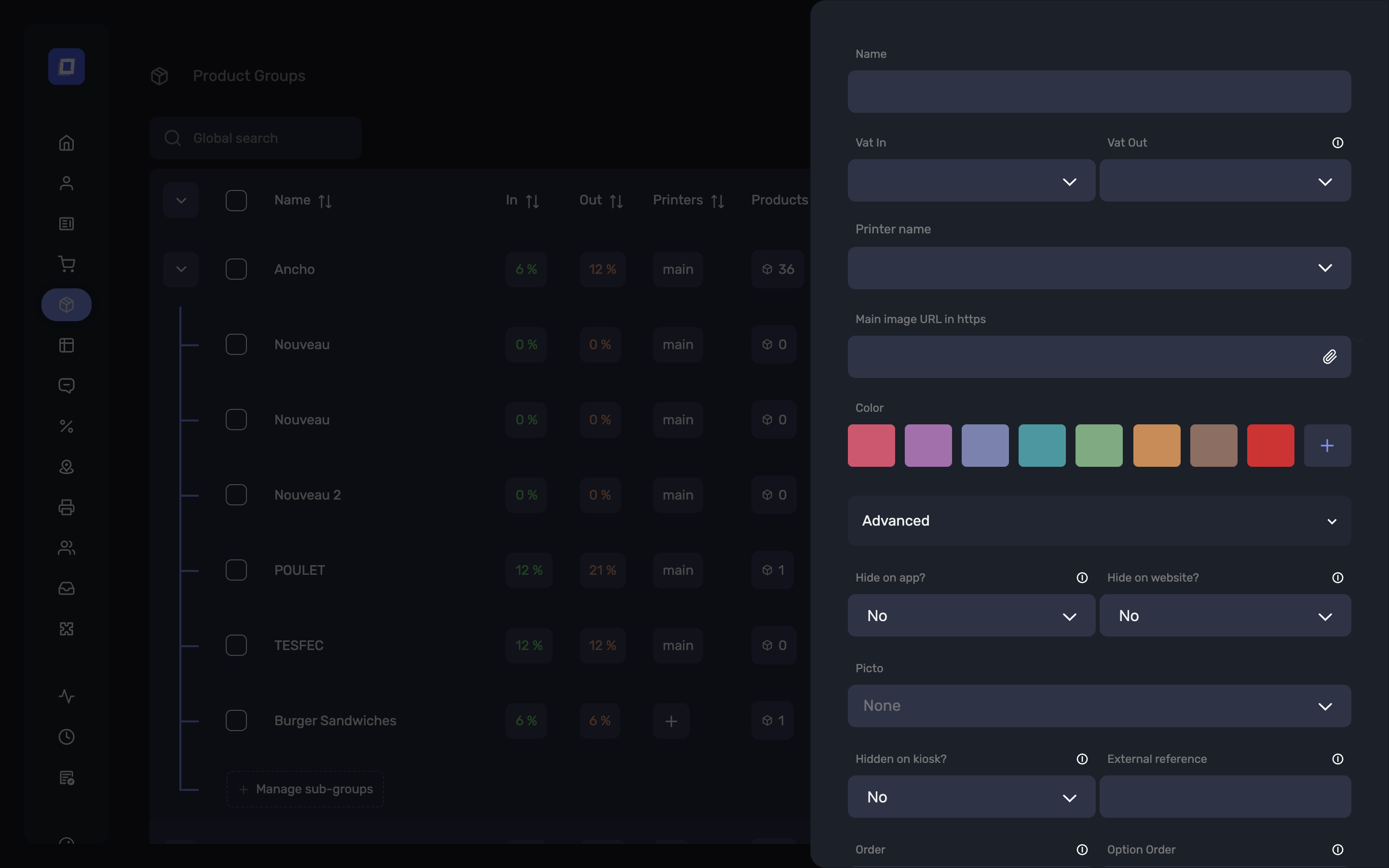
When creating a product group, the following fields are available:
-
Name
The display name of the product group. -
VAT In / VAT Out
These are suggested VAT values that will be prefilled when products are added to the group. -
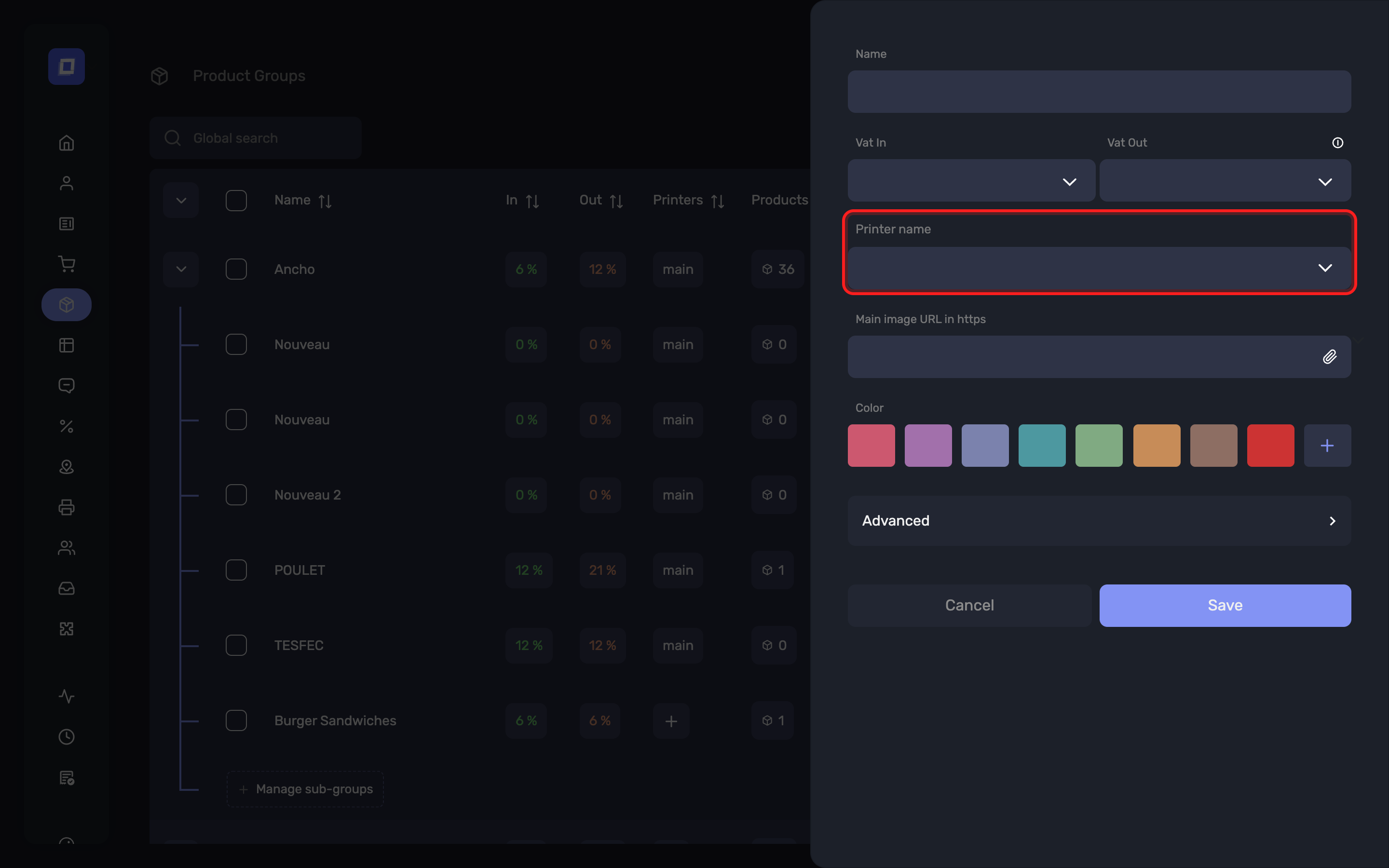
Assigned Printers
One or more printers can be linked to a product group. - If multiple printers are assigned, the user will be prompted to choose which printer to send the order to when submitting products from this group.
Tip
Printers must be created in the Printers section before they can be assigned to a product group.
-
Order
Determines the display order of the group in the main product list. -
Option Order
Defines the group’s order when used in composed menus. -
Hide on app?
Hides the product group in the Posbel app — on the register and on the self-ordering kiosk — without deleting it. The group can still be used for paid and free options on composed products. Useful for temporary unavailability. See Hiding a Group on the Register, the Kiosk and the Website. -
Hidden on kiosk?
Hides the group on the self-ordering kiosk only, leaving it on the register. Use this one when the kiosk should not offer a category that staff still order from. -
Hide on website?
Hides the group from the webshop, without hiding it in the Posbel app. The group can still be used for paid and free options. -
Hide name on kiosk
Hides this group's name on the kiosk so only its image or icon is shown. The group stays visible and selectable. For a group whose picture already says what it is — a drinks photo, a brand logo — this gives the customer a cleaner tile. It changes nothing on the register or the ordering website. -
Color
Defines the display color of the group in the UI (for visual identification). -
Image URL
Optional image used to visually represent the group. -
Max paid in sub group
Limits the number of products that can be selected from this group when part of a composed product or menu. -
Max free in sub group
Specifies how many of the selected products can be offered for free in a composed product context. -
Print Flag
Indicates whether orders for this group should be printed to the assigned printer(s). -
If disabled, no order tickets will be printed.
-
Group Parent
Allows nesting of product groups, creating subgroups under a main group. Choose None (standalone group) to leave the group at the top level. -
Icon
A pictogram shown with the group. Icons are managed in the Icons section.
Hiding a Group on the Register, the Kiosk and the Website
Three separate settings decide where a group can be ordered from. All three are on the group's edit dialog, and also sit as three icons in the Visibility column of the Groups list, where one click switches the group on or off for that surface.
| Setting on Yes | Register | Self-ordering kiosk | Ordering website |
|---|---|---|---|
| Hide on app? | hidden | hidden | group still shown |
| Hidden on kiosk? | unchanged | hidden | unchanged |
| Hide on website? | unchanged | unchanged | hidden |
Hide on app? covers the whole Posbel app. The kiosk is the same Posbel app running in kiosk mode, so a group hidden in the app is hidden on the kiosk as well. This is how the setting is designed to work — a group disappearing from both at once is not a fault in your catalog.
On a group, Hide on app? stops at the app: the group keeps appearing on your ordering website, and only Hide on website? takes it off. On an individual product the same setting goes further and removes it from the ordering website too — see Products → Hide on app?. If you want a category gone from everywhere, set Hide on app? and Hide on website? both to Yes.
To take a group off the kiosk and keep it on the register, set Hidden on kiosk? to Yes and leave Hide on app? on No.
Warning
There is no setting that hides a group on the register while keeping it on the kiosk. The register always sees at least what the kiosk sees.
In the Visibility column, hovering the first icon shows Visible on register. It is the same Hide on app? setting, and it governs the kiosk too; the third icon is the kiosk one. The website icon appears only when online ordering is enabled for your establishment.
Hiding a group never:
- deletes it — past orders keep reporting under it
- changes orders already placed, the tickets they printed, or what the Kitchen Display shows
- stops the group being used as a paid or free option on a composed product — that is the reason to hide rather than delete
The three settings behave the same way for every establishment. None of them changes meaning according to the kind of organisation the establishment belongs to.
Note
A group can also drop off the register and the kiosk on its own schedule, without any of these settings, through Happy Hours.
The same three settings exist on each individual product — see Products → Hidden on kiosk?.
Working with Nested Groups
The list shows subgroups nested under their parent, and gives you the tools to work through a large structure:
- Expand all / Collapse all – open or close the whole tree in one click.
- Search a group – find a group by name without scrolling the tree.
- Select all / Deselect all – select groups in bulk to act on them together. Selecting everything expands the tree so you can see exactly what is included.
Manage Sub-groups
The Manage sub-groups action lets you assign subgroups to a group from one place, instead of opening each group and setting its parent one by one.
Note
Users can be restricted to part of the catalog: a user assigned specific Product groups sees and manages only those groups and everything nested under them. See Users → Product Groups.
Tip
Use Manage sub-groups when restructuring a menu — for instance moving several drink categories under a single Drinks parent. Setting the parent group by group is fine for one change, but slow for a reorganisation.
Duplicating a Group
The Duplicate action on a group's row copies the group inside the same establishment. It asks one question first:
Include the group's products in the duplication?
- No — you get the empty group, with its settings, ready to fill.
- Yes — you get the group and a fresh copy of every product in it.
The copy is named after the original with copy added, and lands directly under it in the list. Copied products start with no barcode and their stock at zero; everything else — prices, VAT, colour, description, image — comes across. Rename the copy before you forget which is which.
Note
Duplicate works within one establishment only. There is no action that copies a group to a different establishment, and a group cannot be exported or imported on its own. To move a catalog between establishments, see Products → Moving Products or a Group to Another Establishment.
Happy Hours
The Happy Hours feature allows you to define time-based visibility rules for each product group. Using this, you can:
- Make a product group visible only on specific days of the week
- Define time slots during which the group will appear or be hidden
This feature is particularly useful for managing time-sensitive menus or promotions.
Note
You can configure a group to appear only during lunch hours from 12:00 to 14:00 on weekdays.
Pop-ups on the Ordering Website
A group can show the customer a pop-up before they order from it. Both options are on the group's edit dialog.
| Field | What it does |
|---|---|
| Enable 18+ Popup | Shows an age verification pop-up for this group |
| Enable custom Popup | Shows a pop-up with your own wording for this group |
| Popup text | The wording, entered per language — FR, NL and EN |
Popup text appears once Enable custom Popup is set to Yes. Use the language buttons to fill in each language you serve; a customer browsing in a language you left blank sees nothing.
The 18+ pop-up is the usual way to handle alcohol on an ordering website.
Note
These fields appear only when online ordering is enabled for your establishment. They affect the ordering website — not the register, and not the kiosk.
Tip
Put the age check on the narrowest group that needs it. Applying it to a broad group like Drinks interrupts customers buying a soft drink, and customers who dismiss pop-ups by reflex are not being verified in any meaningful sense.
Deleting a Product Group
When a product group is deleted, it is hidden from the app interface, but nothing is erased.
- Orders previously associated with that group will still retain their data for historical purposes.
- Deleted groups can be reactivated or referenced for auditing if needed.
Tip
Removing a group never touches past sales, so your historical reporting stays complete and archived figures still add up.