Website Settings
The Website tab of the Settings page configures your webshop — how it takes orders and how it is paid.
Note
The tab appears only once Online order activated has been switched on for your establishment by your Posbel account manager. Until then there is no Website tab to open. See Features Enabled by Posbel.
General
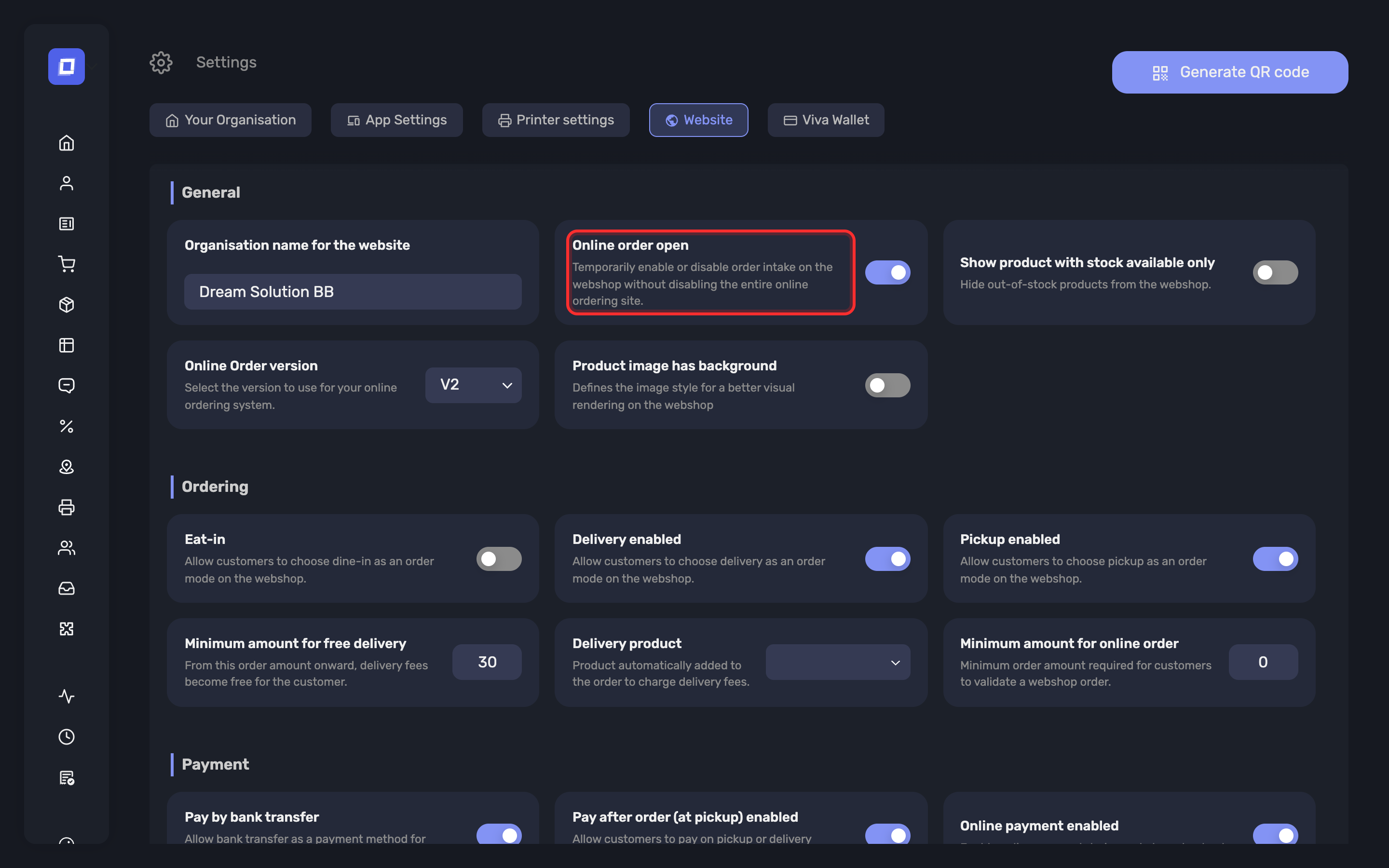
| Setting | What it does |
|---|---|
| Online order open | Pauses and resumes ordering without taking the site down. Customers can still browse the menu and are told when ordering resumes. |
| Organisation name for the website | The name the ordering site uses to identify your establishment. |
| Online Order version | Which version of the ordering site your establishment runs. |
| Link of your banner image | The banner shown on the site. Upload the file in Media and paste its URL here. |
| Product image has background | Tells the site how to render your product images, so images that already carry their own background are not shown as though they were cut out. |
Warning
Version 1 is retired and no longer live. Establishments run the current version.
Tip
A QR code for your webshop can be generated from this tab while the shop is enabled — print it for tables, windows or takeaway bags.
Ordering
| Setting | What it does |
|---|---|
| Pickup enabled | Offers Pick-up as an order type at checkout. |
| Delivery enabled | Offers Delivery as an order type. |
| Eat-in | Offers Eat in as an order type. |
| Show product with stock available only | Hides products with no stock from the site. |
| Minimum amount for online order | The total a customer must reach before they can submit an order. Below it, the site shows how much is still needed. |
| Promo code field | Shows the promo code input on the webshop when validating the order. Switch it off and customers cannot enter a code — see Promotions and Vouchers. |
| Order time selection | Lets the customer choose the execution time of the order on the webshop. With it off, every order is for as soon as you can make it. |
| Eat-in time selection | Also allows choosing the execution time for eat-in orders. Order time selection covers pickup and delivery; this extends it to eat-in. |
| Minimum execution delay (minutes) | Minimum delay in minutes between order validation and the earliest execution time offered. Your head start: set it to the time you need to make a typical order, and no customer can ask for it sooner. |
Warning
Enable at least one order type. With none enabled, a customer can fill a basket and then has nothing to choose at checkout.
Note
Delivery pricing is not set here. The delivery fee, the minimum order and the free-delivery threshold are set per zone on the Delivery Areas page, so a customer two streets away and one across town are charged what each actually costs you.
Payment
| Setting | What it does |
|---|---|
| Online payment enabled | The customer pays at checkout. |
| Pay after order (at pickup) enabled | The customer pays on collection or delivery instead. |
Warning
Enable at least one. A webshop with no payment method lets customers build an order they cannot submit.
Note
A Pay by bank transfer setting is also present on this tab. It belongs to the retired version of the ordering site and has no effect on the current one, which offers online payment and payment at pickup only.
What Is Configured Elsewhere
| Setting | Where |
|---|---|
| Hide on Website — keeps a product or group off the shop | Products and Product Groups |
| Collection points, their Order Time and Pickup Time | Pickup |
| Promo codes customers can enter | Promotions |
| Banner and logo files | Media |
Summary
- The tab appears once Online order activated has been set for you
- Online order open pauses ordering without taking the site down
- Order types and payment methods are each enabled individually
- Minimum amount for online order sets the floor; delivery pricing is per zone, on Delivery Areas
- What the customer sees is described in Online Ordering