Tables
The Tables section allows you to create and organize physical tables — also referred to as cost centers — within your establishment.
Tables can be grouped visually using zones and styled using types to provide better control and visibility inside the Posbel app.
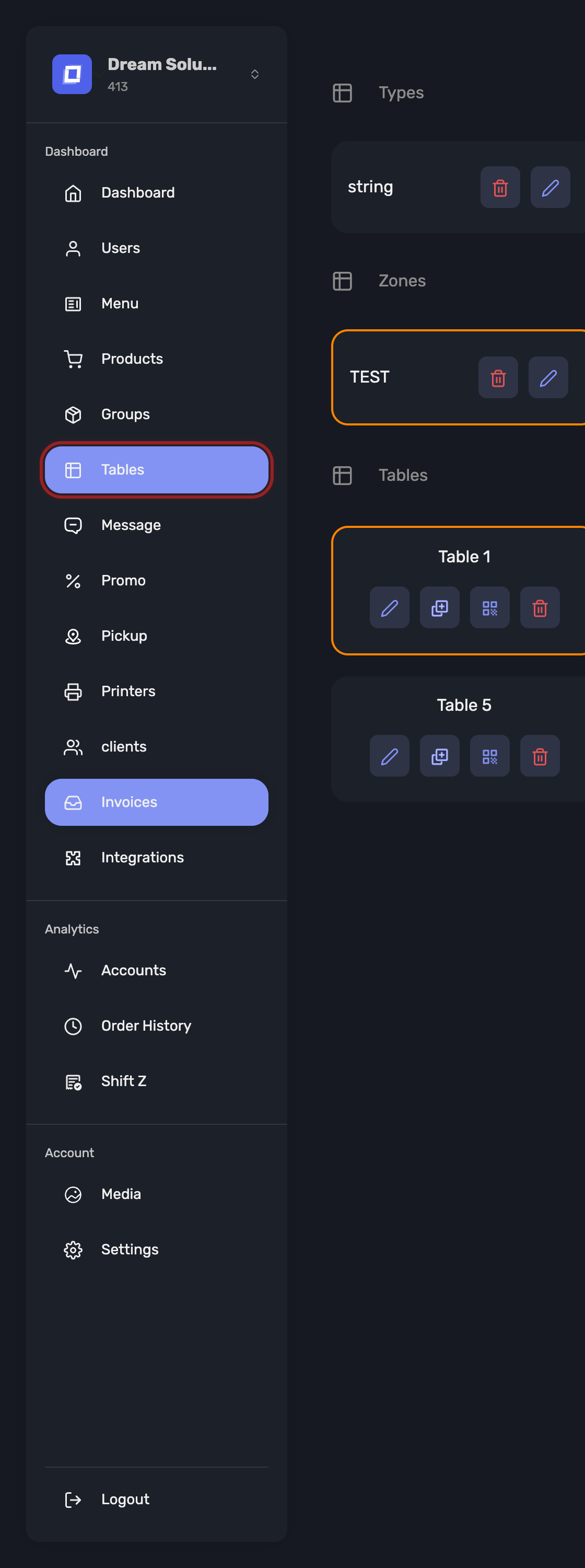
Open it from Tables in the sidebar.
Purpose
Tables represent physical seating locations in your venue. When orders are placed at a table, they are associated with that specific table ID, enabling better tracking of service areas, printing logic, and shift reporting.
Table Types
Table Types provide a visual classification of a table. These types do not affect ordering logic but help distinguish between table categories in the application interface.
Examples of table types:
- Chair table
- Bar table
- High table
- Low table
Tip
Use descriptive types to help staff quickly identify and navigate different areas of the venue visually.
Table Zones
Zones are used to group tables by physical location or service area. This allows for clearer navigation and can help divide service responsibilities (e.g., between indoor and outdoor staff).
Examples of zones:
- Inside
- Outside
- Terrace
- Balcony
Note
Zones are especially useful in large or multi-area establishments where layout visualization improves speed and accuracy of service.
Tip
Zones are also what a table plan is built on: each zone carries its own layout on the register. The plan itself is drawn in the Posbel app, not here — see Table Plan.
Adding a Table
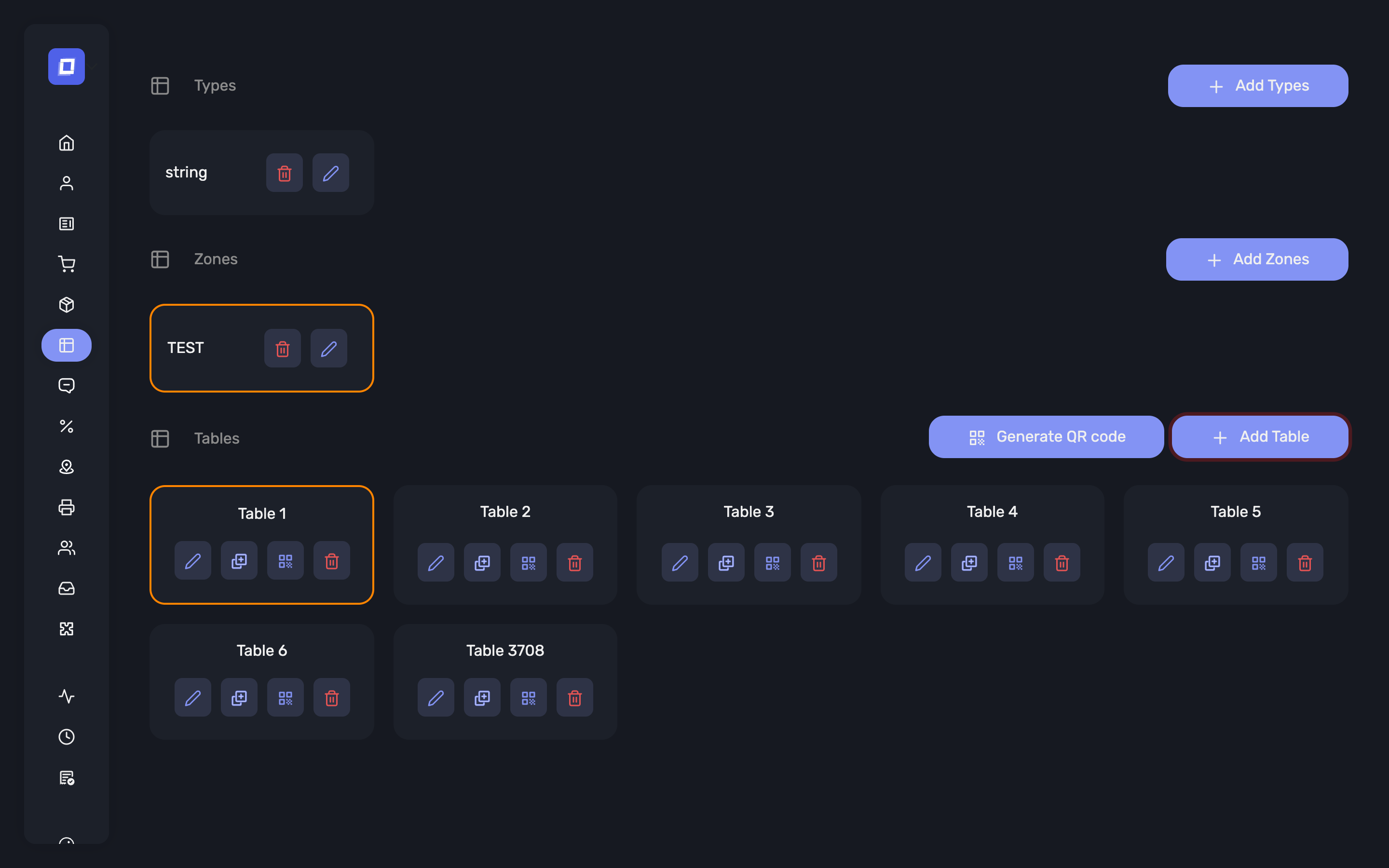
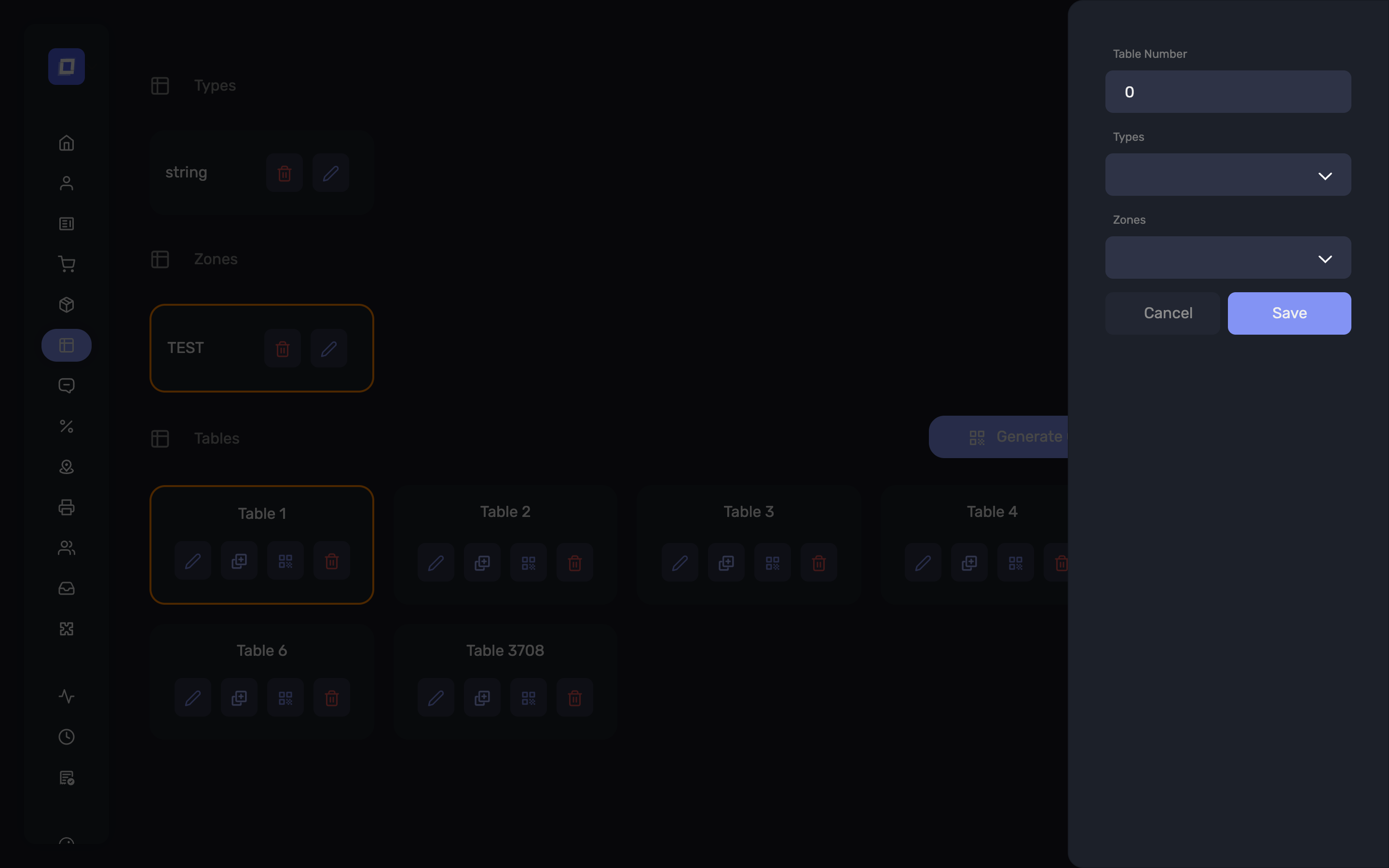
To add a new table, follow these steps:
- Go to the Tables section.
- Click the Add Table button.
- Enter the following fields:
- Table Number (required)
- Table Type (optional – select from types you’ve created)
- Table Zone (optional – select from available zones)
Tip
Only the Table Number is required. Table types and zones are optional, but recommended for better visibility and organization within the app.
QR Codes for Tables
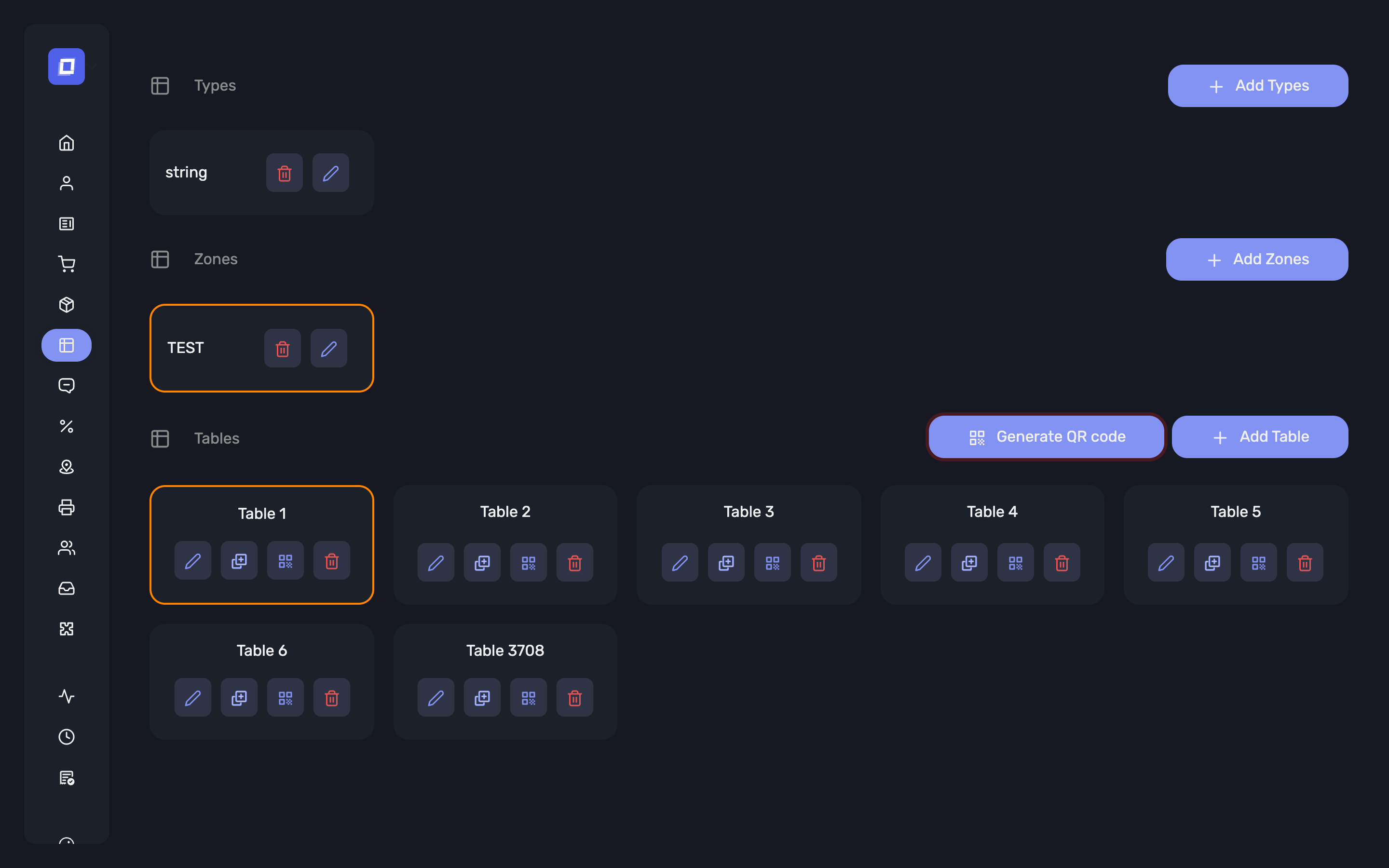
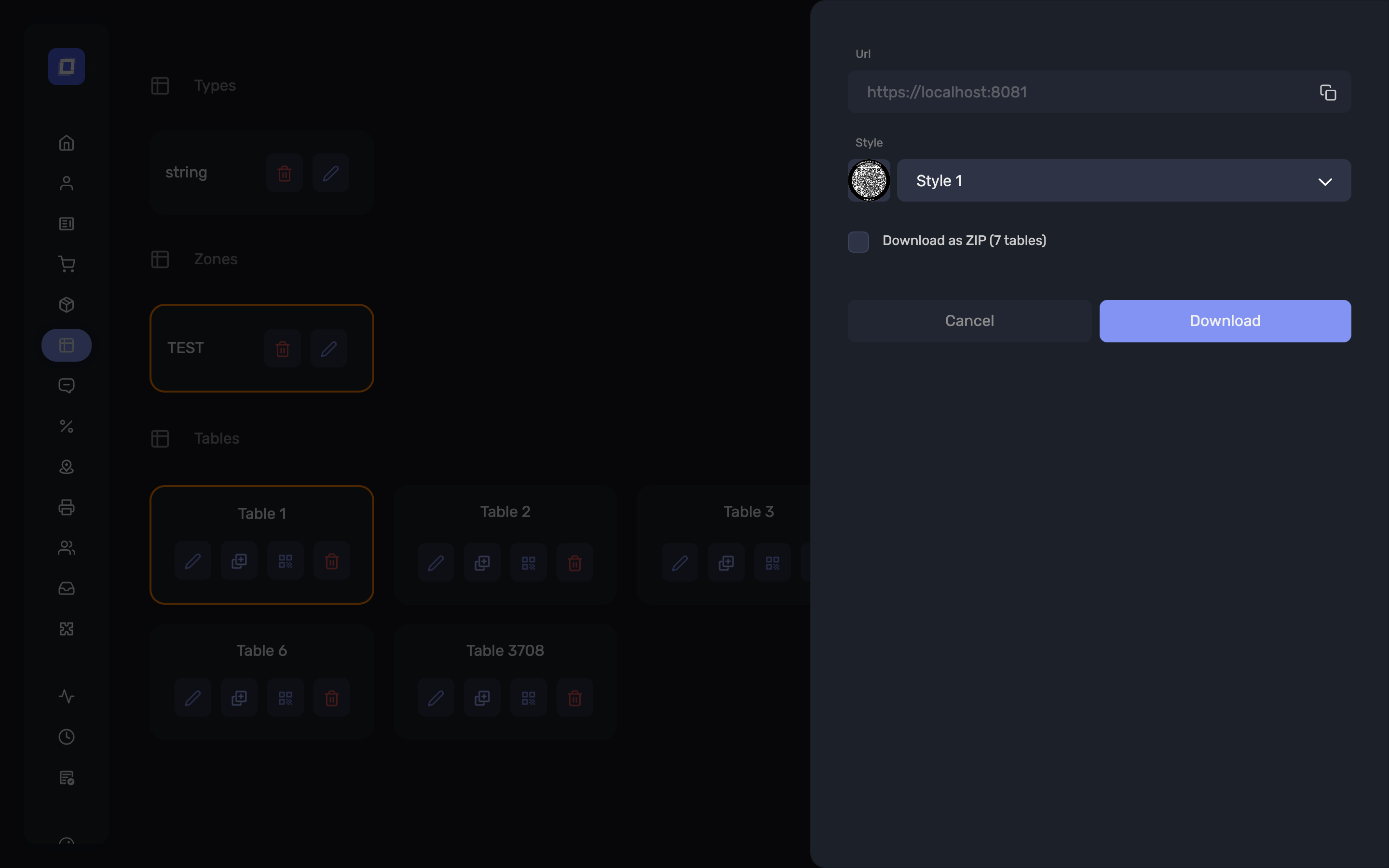
A QR code can be generated for a table so guests can scan it to order at that table.
From the Tables section, open the QR code action and choose what to generate:
- A single table – downloads the QR code for the selected table.
- All tables – tick the Download as ZIP option to generate every eligible table at once. The option states how many tables are included, and the codes are delivered as a single ZIP archive with one file per table.
If no table qualifies, the dialog shows No table to generate.
Tip
Generating all tables at once keeps the codes consistent and saves repeating the same steps per table. Regenerate the ZIP after adding new tables so your printed set stays complete.
Summary
- Tables function as cost centers in Posbel.
- Use types for visual cues and zones for physical grouping.
- These settings improve the layout and usability of the Posbel app and assist with reporting and order tracking.