Products
The Products section allows you to create and manage individual products that will be available in the Posbel app for ordering. Each product must be assigned to a product group in order to be visible and selectable from the application.
Products added here form the core of your menu, and their configuration directly affects ordering behavior, availability, pricing, and printing.
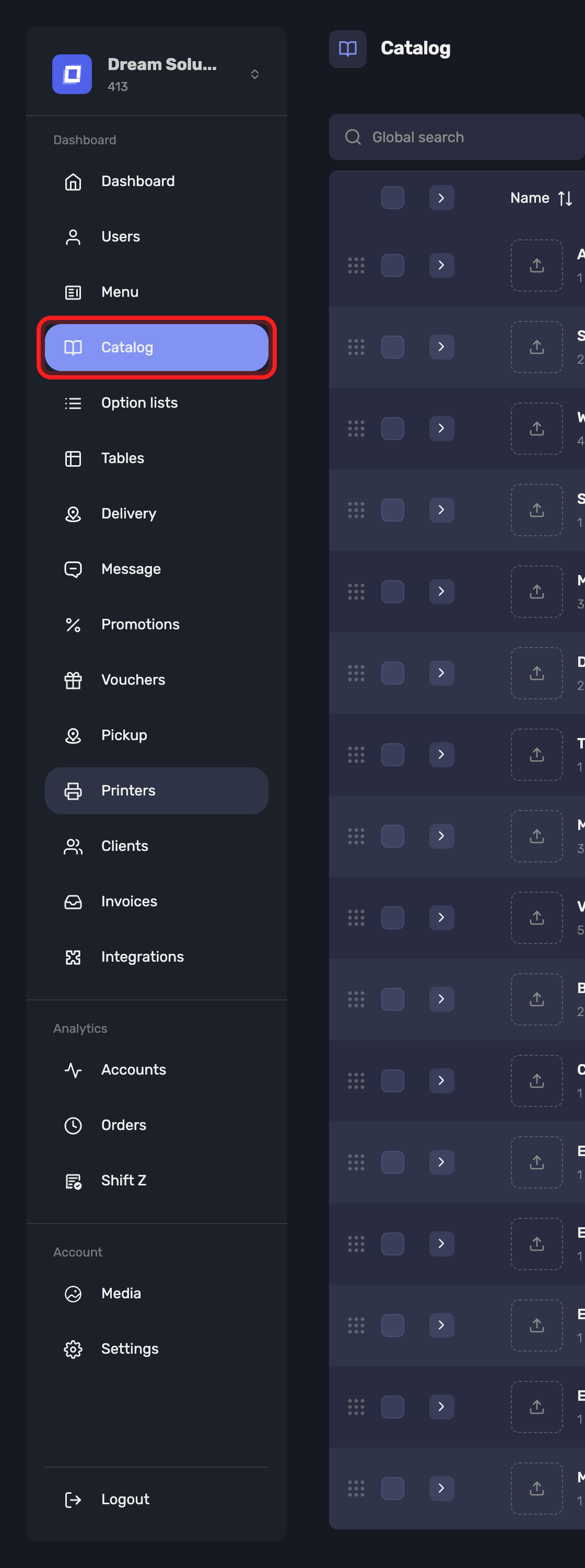
Open it from Catalog in the sidebar and switch to the Products view. Groups and products share that one page — see Product Groups for the other half of it.
Creating a Product
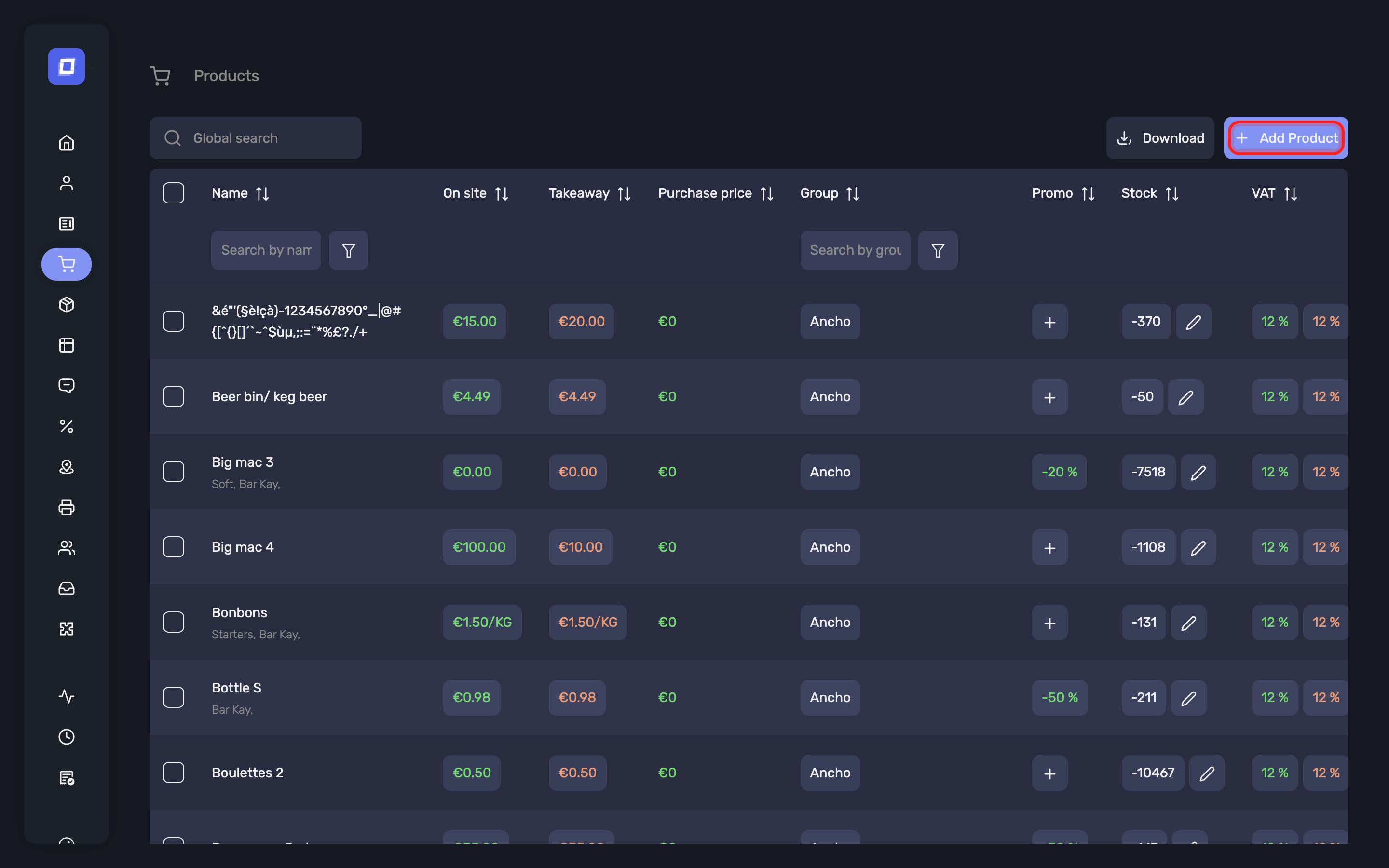
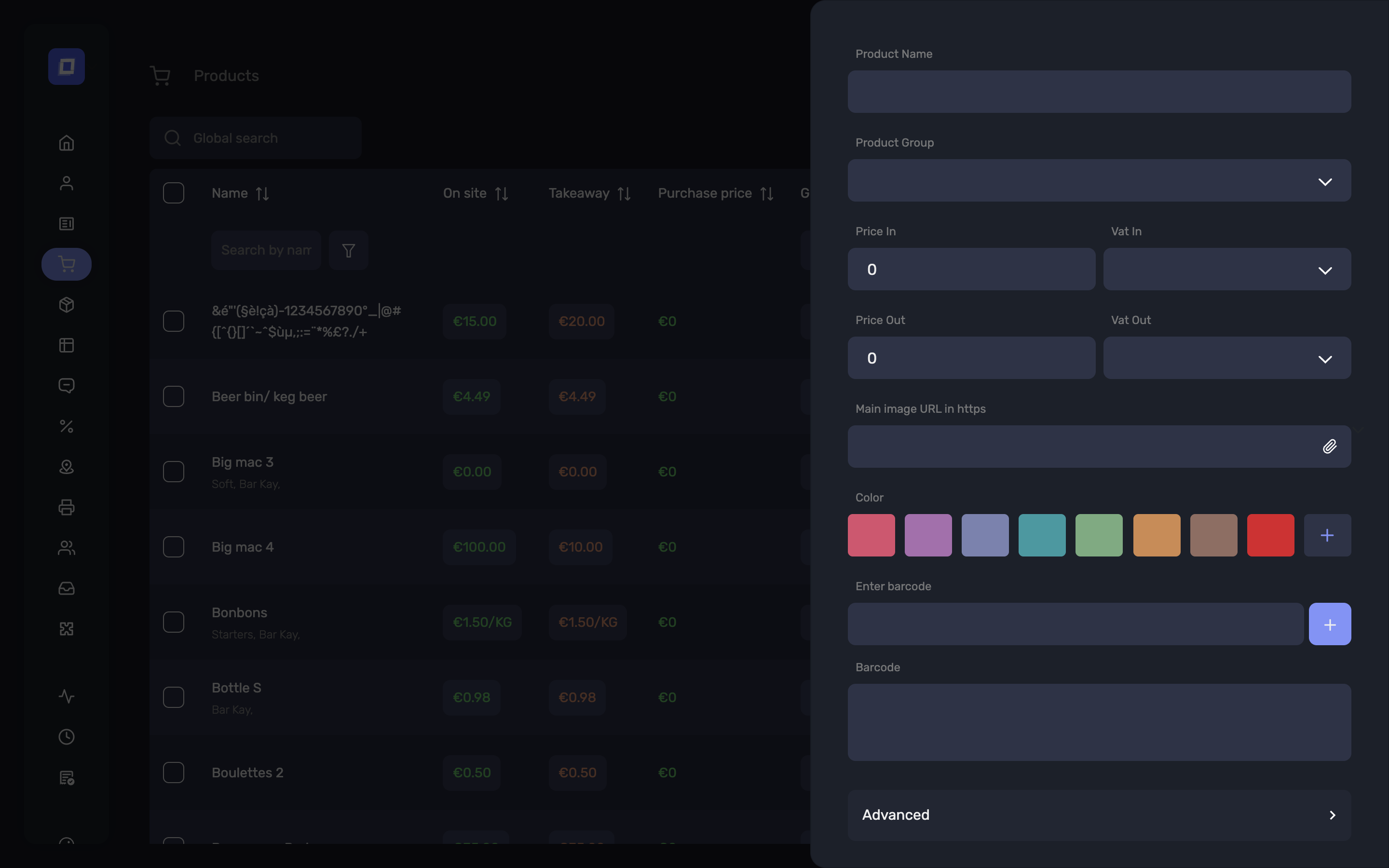
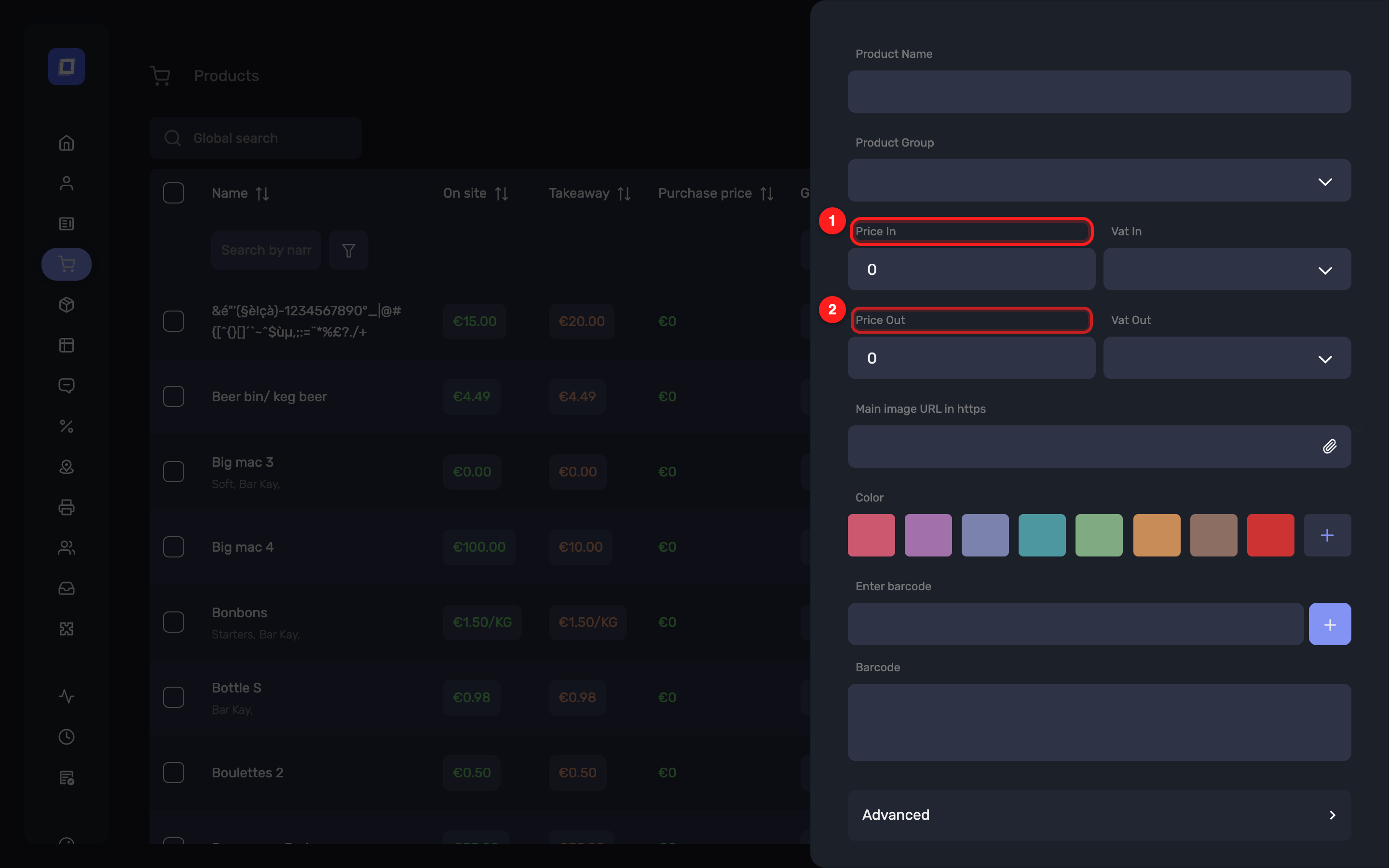
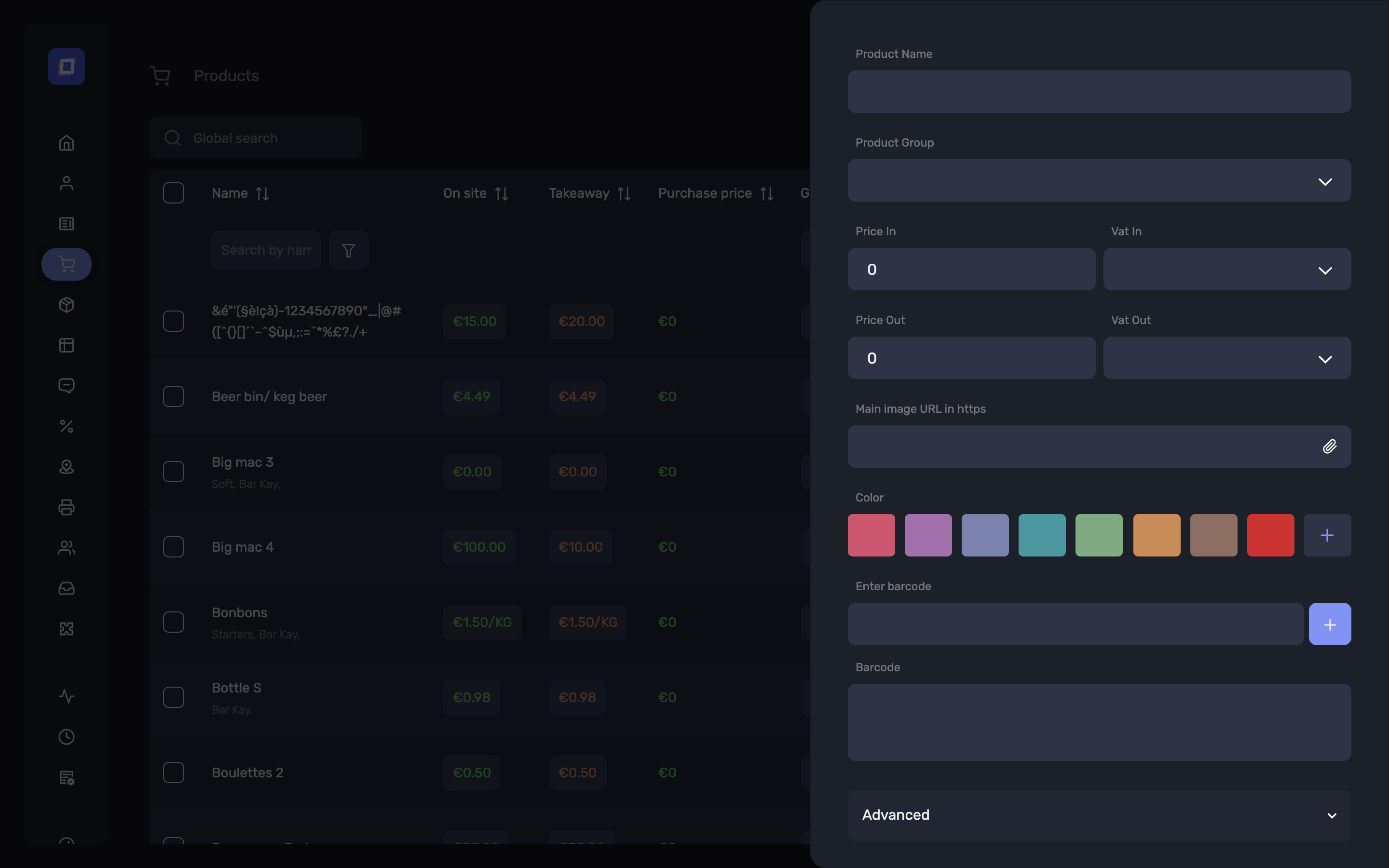
When creating a product, the following fields are available:
Product Name
The name as it will appear in the app and admin panel.
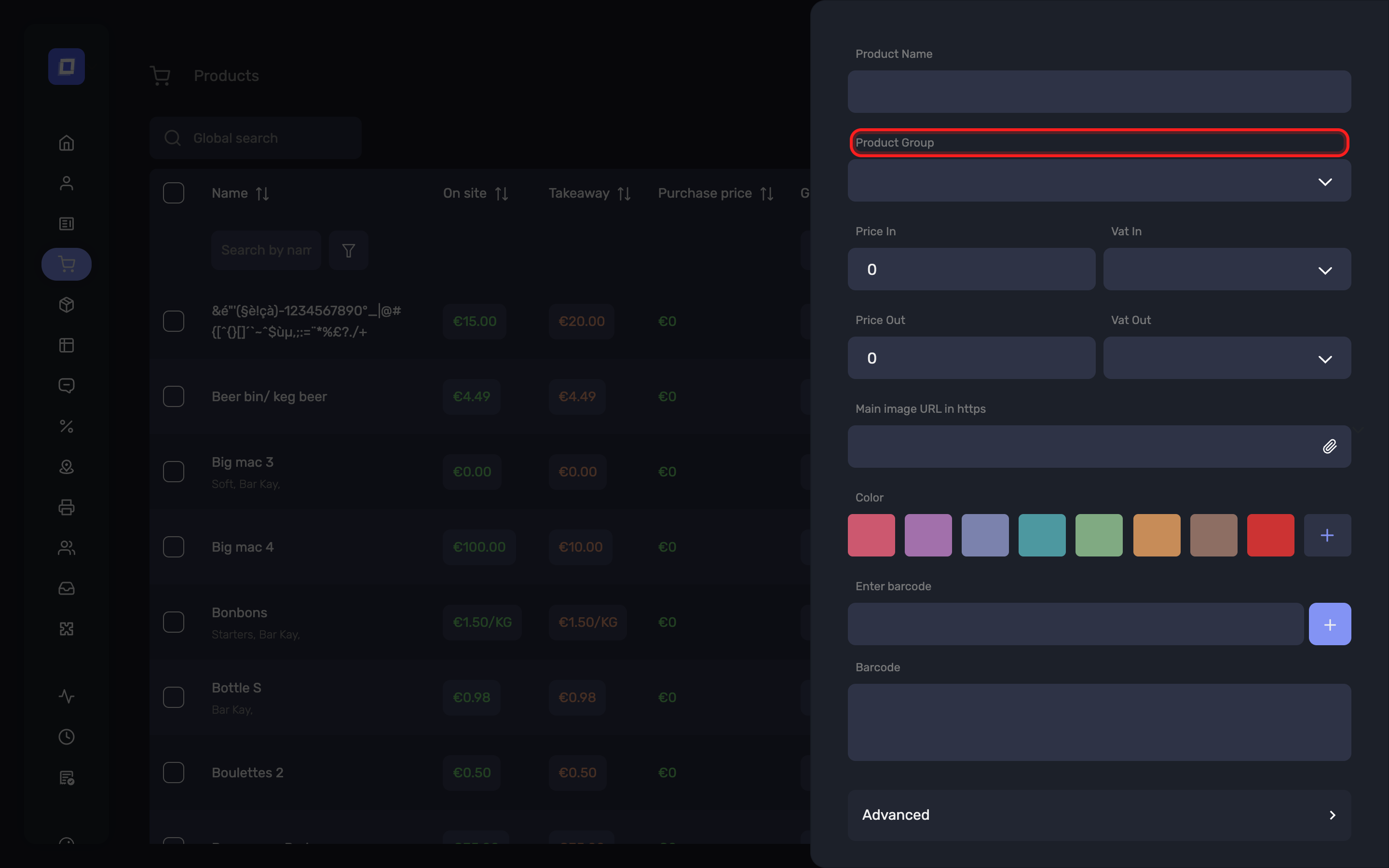
Product Group
The group (department) this product belongs to. This determines visibility, printer routing, and group-based behaviors.
Price In / Price Out
Define pricing for in-house (Price In) and takeaway (Price Out) contexts.
VAT In / VAT Out
VAT applicable to in-house and takeaway orders, respectively.
How you set it depends on your version:
- International — you pick the rate: 21%, 12%, 6%, 0%.
- Belgian SCE-certified — you pick the fiscal letter, which carries the rate with it: A (21%), B (12%), C (6%), D (0%) or X (-). These are the letters printed on the VAT ticket.
Stock
Optional. If enabled, stock will decrement automatically when the product is ordered.
Order
Determines the position of this product within the list of products in its assigned group.
Purchase price
What the product costs you, excluding VAT.
This is not shown to customers and does not affect the selling price or the till. It exists so the panel can put cost next to revenue when you are looking at what a product is actually worth selling.
Tip
Filling this in is optional, and it is only as useful as it is current. If you set it once and never revisit it after supplier prices move, it will quietly mislead you — either keep it up to date or leave it empty.
Timed Product
Marks the product as available on an hourly basis.
Note
The field is not shown in the Belgian SCE-certified version.
Allow Decimal Units
Enables ordering the product in fractional quantities (e.g., 0.5 kg).
Dynamic Price
Allows the price to be entered manually at the time of ordering, overriding the pre-set value.
When enabled, the price configured in the Posbel Admin panel will be ignored during order creation.
Warning
A dynamic-price product cannot be ordered on a self-ordering kiosk. The customer has no way to set a price, so the product is not offered there.
Weight Price
Indicates whether the product's price is calculated based on weight.
Hide on app?
Hides the product in the Posbel app — on the register and on the self-ordering kiosk — without deleting it. It is also left off your ordering website, so this one setting removes the product from everywhere a customer or a member of staff could order it. The product can still be used as a paid or free option on a composed product.
Hiding the product's whole group with the same setting does not reach the ordering website; that difference, and the full table of settings against surfaces, is on Product Groups → Hiding a Group on the Register, the Kiosk and the Website.
Hidden on kiosk?
Hides the product on the self-ordering kiosk only, leaving it on the register.
Between them, the two settings cover every case except one: a product cannot be hidden on the register while staying on the kiosk.
Hide on website?
Hides the product from the webshop, without hiding it in the Posbel app. Hide on app? already keeps the product off the website, so this setting is for the opposite case: a product staff can ring up but customers cannot order online.
Note
Two product settings keep a product off a customer-facing surface on their own, with no hiding setting involved: a Dynamic Price product is offered on neither the kiosk nor the ordering website, and a Timed Product is left off the ordering website. Neither can be priced without a member of staff.
Fixed promotion in %
Applies a percentage-based discount directly to the product.
The original price and the deduction are both shown on the VAT and summary tickets — see Payment → Promotions on Tickets.
Color
Optional display color for quick identification in the UI.
Multilingual Descriptions
You can provide product descriptions in up to three different languages.
Barcode
Used to enable barcode scanning for quick product selection.
Image URL & Extra Images
Add one or more image URLs to visually represent the product. Files are uploaded in the Media section.
Allergens
Select the allergens that apply to the product. The available symbols are managed in the Icons section, where each one carries its name per language.
Working with the Product List
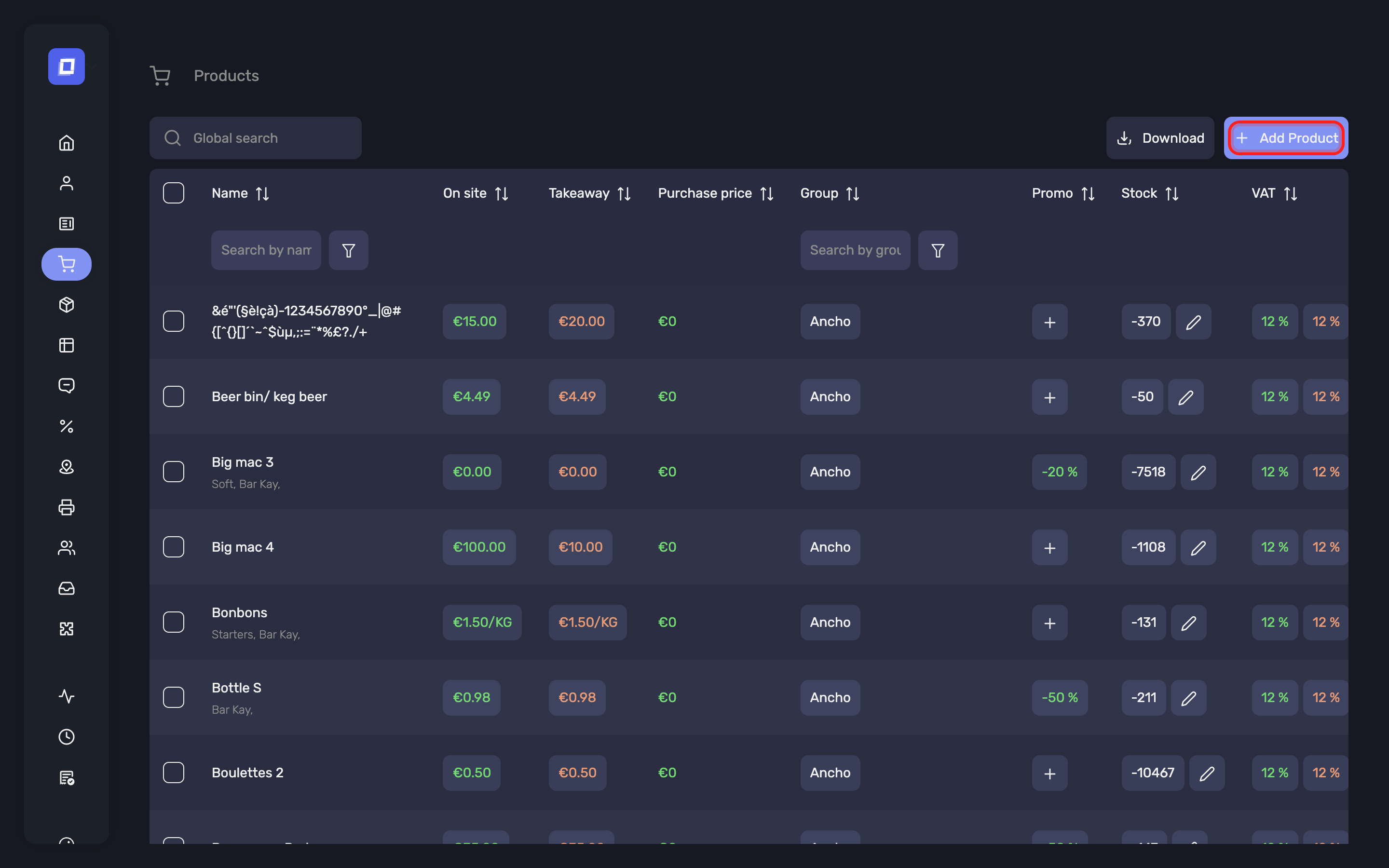
The product list is built for large catalogs:
- Search and sort on any column, including Barcode — useful when checking scanned codes for duplicates or gaps.
- Filter on the Group column from the box under its heading, to work through one department at a time.
- Select several products and edit them together. The bulk edit dialog covers the Image URL as well, so a whole group of products can be given their image in one action.
Tip
Bulk edit is the fastest way to apply a change that is identical across many products — a VAT rate, a group move, or an image. Filter the list first, then select and edit.
Note
If your user is restricted to specific Product groups, this page shows only the products of those groups, and editing or deleting outside them is refused. See Users → Product Groups.
Exporting Your Products
The Products view carries a Download action that saves your products as a CSV file. It is on the Products view only — the Groups view has no download.
What it writes depends on what you have ticked:
| On the Products view | The button | What the file contains |
|---|---|---|
| Nothing ticked | Download | every product in the establishment |
| One or more products ticked | Download (3), counting your selection | only those products |
Warning
With nothing ticked, Download gives you the whole catalog — filtering or searching the list first does not narrow the file. The only thing that narrows it is ticking the products you want.
So to get the products of a single group: switch to the Products view, type the group's name in the filter box under the Group column heading, tick the products that remain, and use the Download (n) button that appears.
Ticking groups instead offers no download at all — the action belongs to products.
The file lists each product with its name, group, selling prices, purchase price, VAT, stock, colour, image URL, barcodes, external reference and description. It is a snapshot for your own records or for a spreadsheet.
Warning
Keep the file somewhere safe. It carries your full price list and your purchase prices — the figures you never show a customer.
Moving Products or a Group to Another Establishment
Loading a product file into a different establishment is not something you can run yourself from the back office. Ask your Posbel technician or partner: send them the CSV you downloaded, say which establishment it should land in, and they will bring it across with the CSV Import wizard.
Two limits are worth knowing before you ask, because they decide how much tidying up you face afterwards:
- There is no export or import of a product group on its own. Groups are only recreated as a side effect of the products that belong to them, so a group with no products in it does not travel at all.
- Group nesting is not carried over. Groups arrive at the top level, so subgroups have to be re-nested in the destination establishment with Manage sub-groups — see Product Groups → Manage Sub-groups.
Plan on checking these in the destination establishment once the products are in: assigned printers, icons, option lists, and the VAT on each new group.
Tip
Within one establishment you can copy a group yourself, products included, with no file and no waiting — see Product Groups → Duplicating a Group.
Option Lists
Assign options attaches one or more reusable option lists to a product — sauces, cooking, ingredients to leave out — each with its own choice rules and prices. Build the lists once under Option lists and assign them wherever they apply: see Option Lists.
Product Group Options (Composed Products / Menus)
The Product Group Options section allows you to link other product groups to a main product. This is used to build composed products or menus.
When a user selects the main product in the app, they will be prompted to choose products from the specified groups.
Free Options
Products selected from these groups are included in the menu at no extra cost.
Paid Options
Products selected from these groups will have their price added to the total.
Multi-Choice
Determines whether the user can select one or multiple products from the linked group.
Tip
To further control how many items a user can choose from a group, refer to the Max paid in sub group and Max free in sub group settings in the Product Groups configuration.