Printers
The Printers section allows you to create and manage printer configurations for your establishment. Printers created in this section can later be assigned to:
- Specific users (such as Register or Main users)
- Product groups (as will be described in the Product Groups section)
Assigning printers ensures that orders are printed automatically at the correct location when an order is placed or sent from the Posbel app.
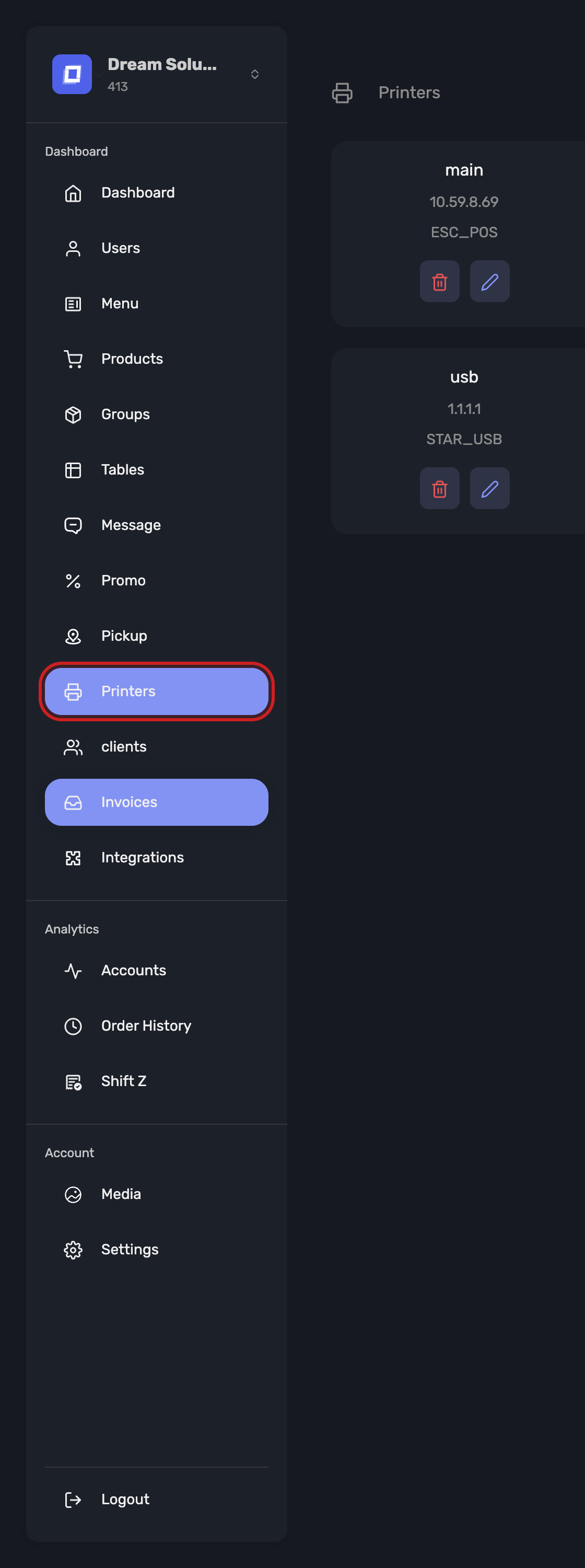
Open it from Printers in the sidebar.
Creating a Printer
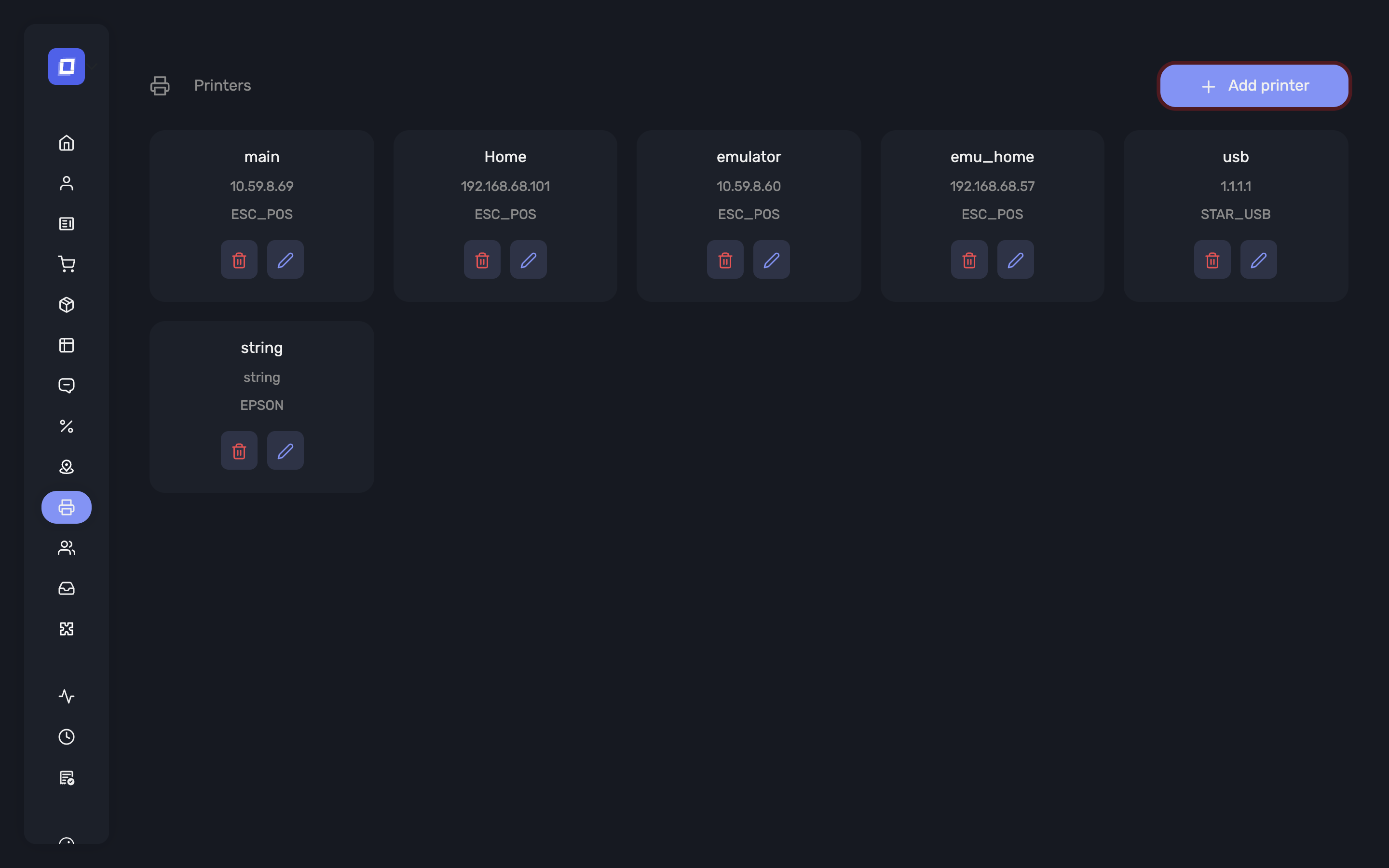
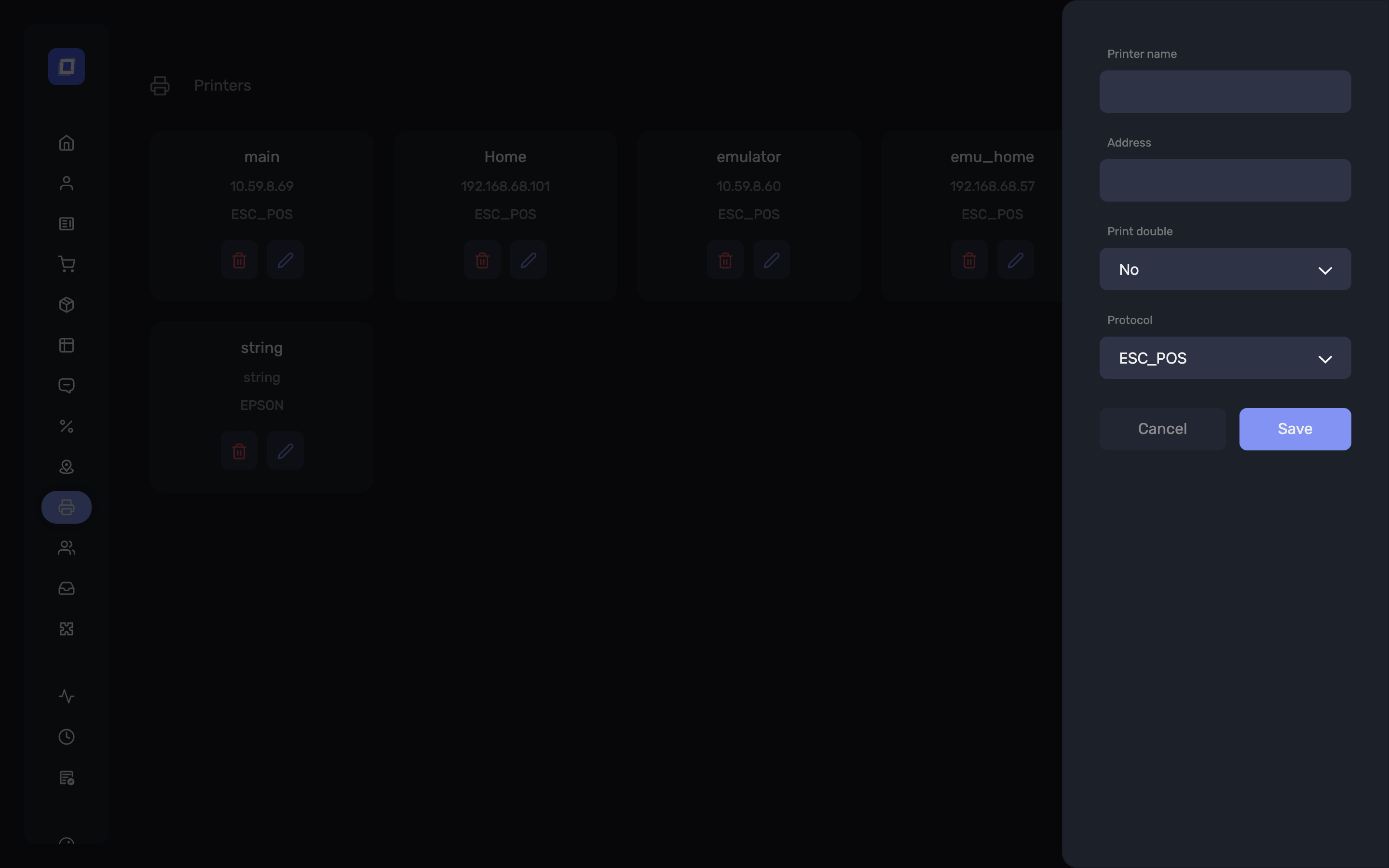
To create a printer, the following fields are required:
Printer name
- A descriptive name that helps identify the printer within the system.
IP Address
- The IP address of the printer. This value depends on the printer's network setup, whether it's connected via Wi-Fi or Ethernet.
Print double
- A setting that determines whether the order should be printed twice each time it is sent.
- Set to Yes if a double print is needed.
- Set to No for single print.
Ticket Cutting
Tickets are cut with a partial cut, leaving the ticket attached by a small tab that tears off cleanly.
Note
Some printer models do not handle a full cut reliably and would fail to cut the ticket at all. The partial cut works across the printers Posbel supports, including models not supplied by Posbel.
Model
For Star printers, a Model dropdown is available so the correct printer model can be selected.
- The field is optional — leave it on -- Select model -- if you do not know the model.
- Setting it lets the system use the communication settings that match that model.
Tip
The model is usually printed on the label on the underside or back of the printer.
Warning
The IP address must match the printer's IP as configured on the local network. Check your network settings or printer admin panel if you're unsure.
Printer Assignments
Once a printer is created, it can be assigned in two key areas:
To a User
- Typically a Register or Main type.
- This allows printed tickets to be routed to the printer associated with that register.
To a Product Group
- Assigning a printer to a product group ensures that any product within that group is sent to the correct printer upon order submission. This will be explained in detail in section 3 (Product Groups).
Tip
Printer assignment is crucial for ensuring operational efficiency in kitchens, bars, or other preparation areas where tickets must be printed in real time. Assigning a printer to a user (Main/Register) ensures that requesting a Provisional Bill or Vat ticket is printed on the assigned printer.