Account History
The Account History section provides a detailed log of all account activities (e.g., sales) that occurred within a specified time range. Each entry represents an individual account (e.g., a table, delivery, or takeaway) and includes payment details, associated users, and transaction summaries.
Warning
Do not use this page for accounting. It searches by when an account was opened, so an account opened at 23:50 and paid at 00:20 falls in the earlier day here but counts in the later shift's takings. Use Accounting for anything financial.
Tip
Accounts answers "what did we sell, and to whom"; Shifts answers "what did each trading session take"; Payment Totals answers "what money moved". When a figure looks wrong, work down that order — shift totals first, then the accounts inside it, then the individual movements on the account.
Note
Screenshots show the International panel. In the certified version accounts cannot be deleted and the selection column is absent — see What You See Depends on Your Version.
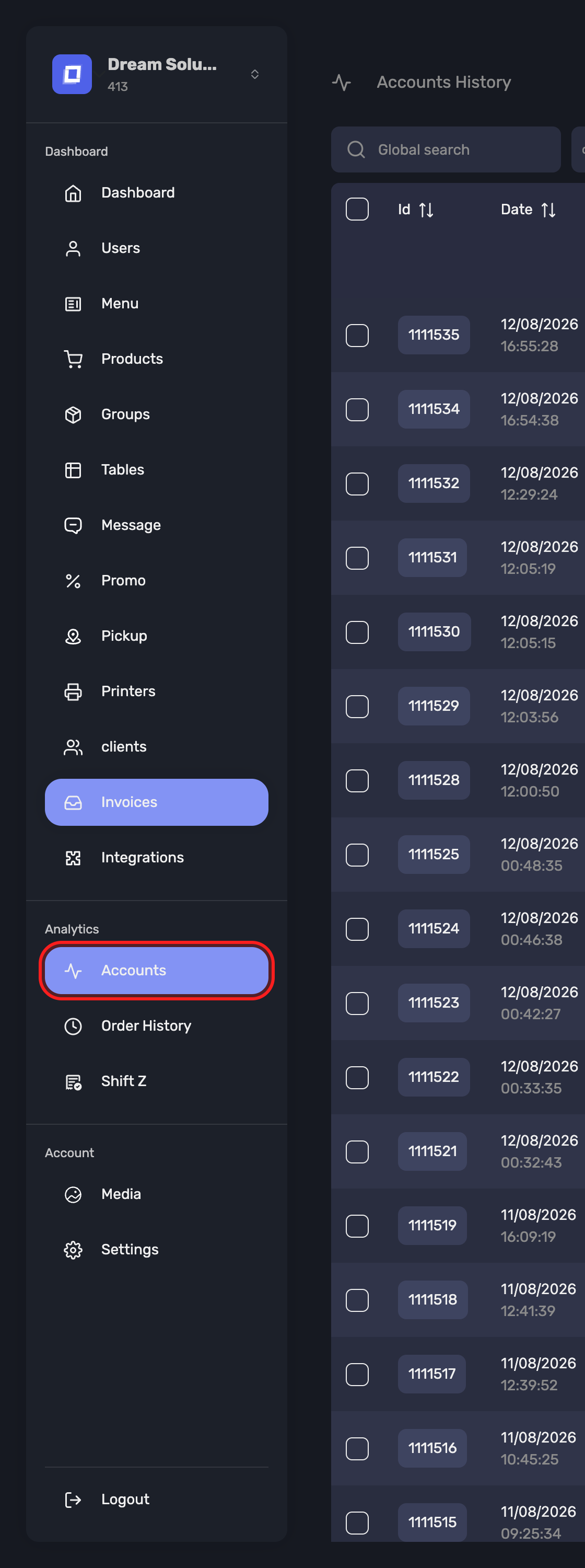
Open it from Accounts in the sidebar.
Using the Interface
Date Range Filter
Use the two date/time input fields at the top to define the start and end of the period you want to review.
- Format:
dd/mm/yyyy, --:-- - Click the calendar icon to select dates and times.
After defining the interval, click the Search button to generate a list of all matching account records.
Keyword Search
Below the date filter, use the Keyword Search field to locate specific accounts by table number, user name, ID, or other keywords.
Filter Chips
When you open this page from another section — for example from the statistics of a shift, or from a specific user in those statistics — the filter that was applied is shown as a chip above the list, such as Shift # or User #.
Click Clear filter to drop it and return to the full list for the selected period.
Tip
Chips are the quickest way to see why a list is shorter than expected. If a total does not match what you had in mind, check whether a chip is still active.
Account Table
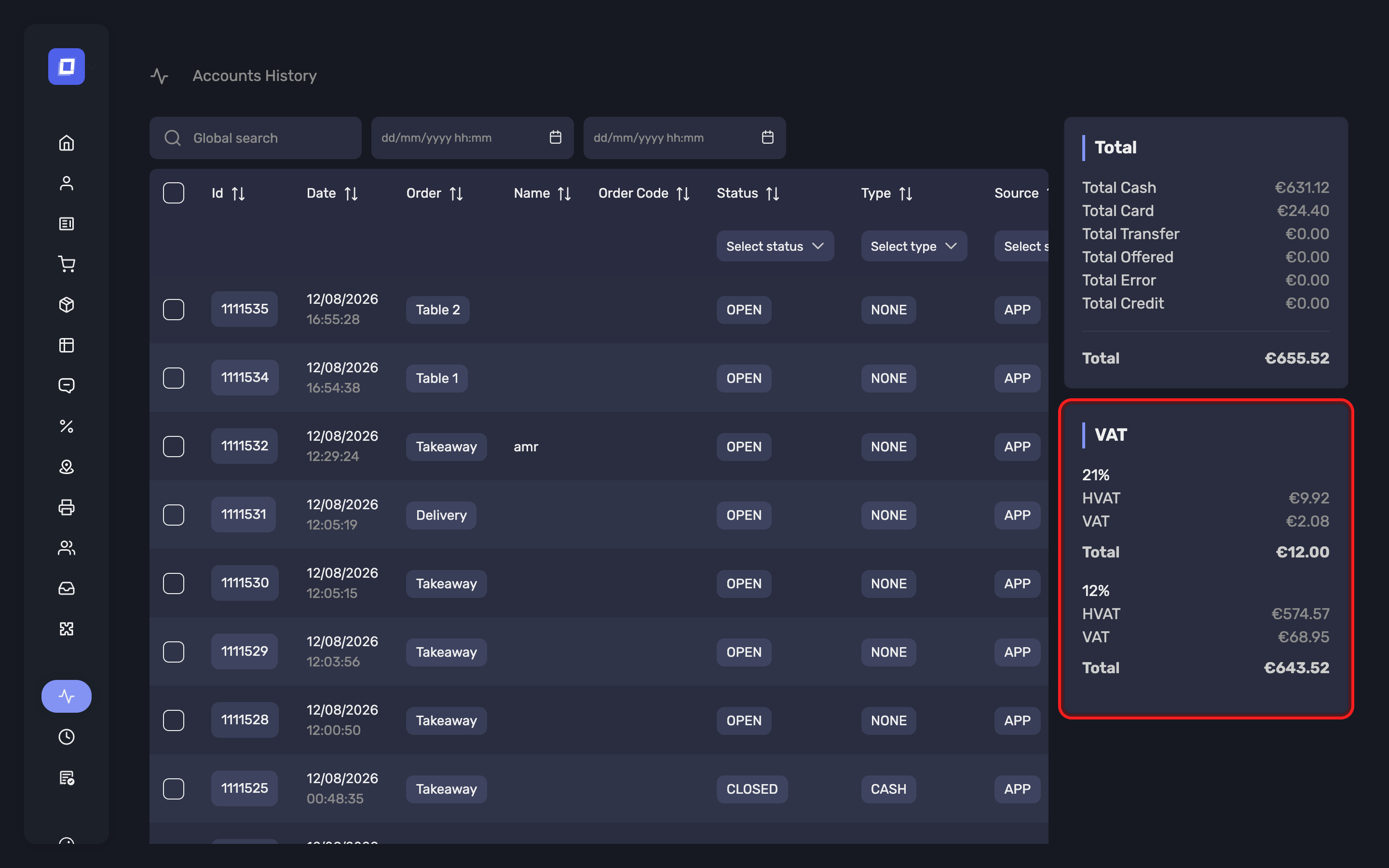
The main table lists all accounts within the filtered interval. Columns include:
- Id: Unique identifier for the account.
- Date: Date and time of the transaction.
- Table: Table number associated with the transaction.
- Name: Custom account label (if assigned).
- Status: Whether the account is open or closed.
- Type: Payment method used (e.g., Cash, Card).
- Source: Transaction origin (e.g., APP).
- Total: Total amount of the transaction.
- Closed At: When the account was paid and closed — where Date is when it opened. This is the one accounting works from.
- User: The staff member who processed the order.
- Actions:
- 📄 View details
Tip
You can sort the table by clicking on any column header (e.g., Date, Total, User). This helps quickly identify the most recent or highest-value transactions.
Note
In the Belgian SCE-certified version, accounts cannot be deleted from this page and the bulk selection column is not shown. A registered sale is part of the fiscal record and stays there.
Sending a VAT Ticket to a Client
From the detail view of an account, a VAT ticket action is available in the page header. It lets you give the customer their VAT ticket after the fact, without reprinting it on the register.
Two options are offered:
- Send by email – the ticket is emailed to the client. The address registered on the client is filled in for you, and can be changed before sending. A confirmation (VAT ticket sent) appears once it has gone out.
- Download – the ticket is downloaded as a PDF so you can forward or archive it yourself.
The action is only offered when all of the following are true:
- The account is closed
- A client is linked to the account
- The account was closed less than 48 hours ago
Note
The 48-hour window is deliberate: it covers the customer who asks for their ticket the same day or the day after, without turning the account history into an open-ended reprint tool.
Warning
In the Belgian SCE-certified version, the rules on VAT ticket delivery described in the Payment section continue to apply.
Sending an Invoice
Send invoice sits in the header of an account's detail view, beside the VAT ticket action.
Warning
Invoicing is not available in the Belgian SCE-certified version, and the action is not shown there.
Unlike the register, the Posbel Admin panel does not require that the client was attached before the account was paid. On an account with no client, Send invoice opens on a choice first:
- Existing client — search your client list and pick the customer
- New client — create the record then and there
Either way the client is linked to the account, and the dialog moves on to the invoice. An account that already has a client goes straight to it, showing the client's name with an edit button beside it if the invoice should go to someone else.
Fill in the Invoice number and send. The invoice is generated, emailed to the client, and listed under Invoices.
Tip
This is the way back from an account that was paid without a client. The register cannot add one afterwards; the back office can. See Payment → Sending an Invoice.
Once an account has been invoiced, Send invoice gives way to an Invoice card carrying the invoice number, with a download for the PDF. The account table shows the same number in its Invoices column, which opens the document. An invoiced account can no longer be deleted — the panel refuses with "Cannot delete an already invoiced account."
Summary Panels
To the right of the table are two summary blocks:
Total Panel
Displays the aggregated totals for each payment type during the selected interval:
- Total Cash
- Total Card
- Total Transfer
- Total Offered
- Total Error
- Total Credit
- Total — cash, card, transfer and credit added together
Total Offered and Total Error are listed with the others but are not part of Total: nothing was taken for them. Every line is net of change returned.
This panel reflects the total value of closed and paid transactions only. For the same figures per shift, and for reading this card in full, see Payment Totals.
VAT Panel
Breaks down VAT totals by percentage rate:
- Each applicable VAT rate (e.g., 12%, 6%)
- Total VAT collected per rate
Note
The VAT panel includes all VAT associated with the order items, regardless of whether the account is paid or still open.
In contrast, the Total panel only reflects completed (paid and closed) transactions.
Warning
This means the values shown in the VAT and Total panels may not match if there are open accounts or unpaid transactions during the selected interval.
VAT Disclaimer
Warning
The VAT figures shown in this section are for visual reference only. They do not represent certified or legally binding financial records for the SCE certified Belgian version of the application.
For official reporting or audit purposes, always refer to a signed VAT ticket generated by the POS system.
Summary
- Use this section to review account activity within specific timeframes.
- Quickly identify trends by sorting and filtering data.
- Use totals and VAT summaries for operational insights — but rely on certified reports for compliance.